
On a computer, the CookEase browser extension shows you just the recipe on the page you are looking at: the ingredients and the steps, with no ads and no life story. It works the moment you add it, with no account. When you want to keep a recipe, one click saves it to your cookbook on the website and in the app.
Add the extension
Open cookeaseapp.com/extension on your computer and add CookEase to your browser. Chrome, Brave, Opera and Arc add it from the Chrome Web Store, Edge from Microsoft Edge Add-ons, and Firefox from Firefox Add-ons. When you are signed in on the website, Add CookEase to Chrome (or your browser) is also in your account menu.
See just the recipe
Open a recipe page and click the CookEase button in your toolbar. The window shows the recipe's photo and name, then Ingredients and Steps, read from the page you have open. You do not need an account, and nothing is sent anywhere.
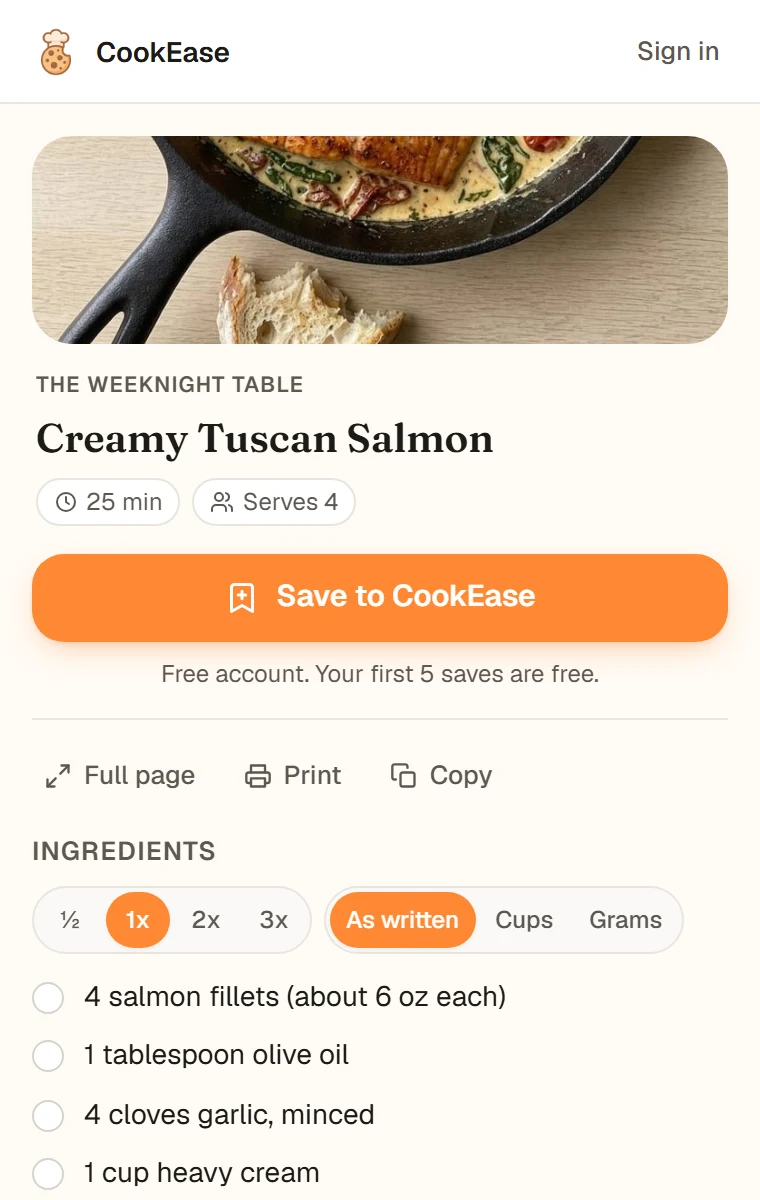
Just the recipe, with no account.
- Check things off. Click an ingredient or a step to check it off as you cook.
- Copy it. Copy puts the whole recipe on your clipboard, with a link back to the page it came from.
- More than one recipe on the page? Their names appear above the ingredients. Click the one you want.
It works on ordinary recipe websites and food blogs that publish their recipe in the standard recipe format most recipe sites use. See when it does not find a recipe for the pages that do not.
Resize it and switch units
Two switches sit beside Ingredients.
- Size: half, 1x, 2x or 3x. Every amount in the ingredient list changes with it. The steps keep the amounts as they were written, and the window reminds you that pan size and cooking time may change too.
- Units: As written, Cups or Grams. Grams also turns oven temperatures into Celsius and pan sizes into centimeters. Your choice is remembered for the next recipe.
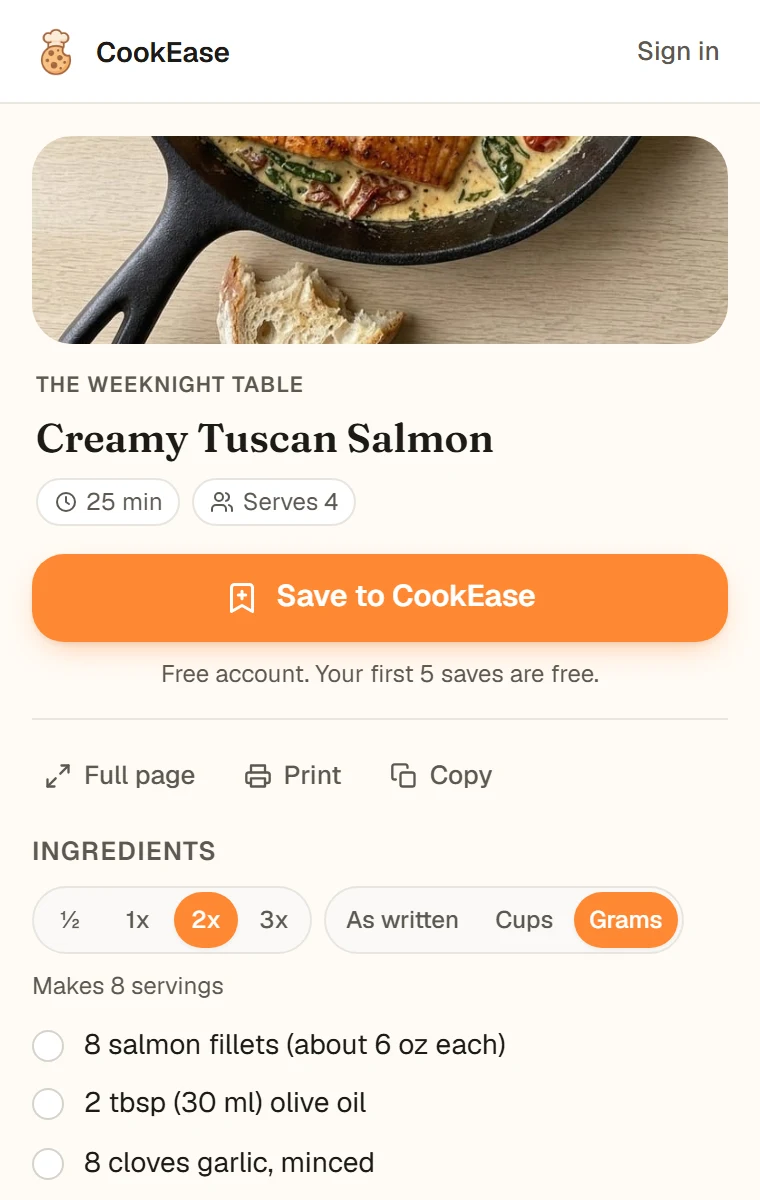
Doubled, and in grams.
Once a recipe is in your cookbook, it has its own Serves control too. See cooking for more or fewer people.
Full page and print
Full page opens the recipe on its own clean page in a new tab, with larger text and the same size and units switches. At the top are Print, Copy and Keep screen on, which stops your screen from dimming while you cook, and See the original takes you back to the page the recipe came from.
Print, in the window or on the full page, gives you a clean page with only the recipe on it, at the size and in the units you picked.
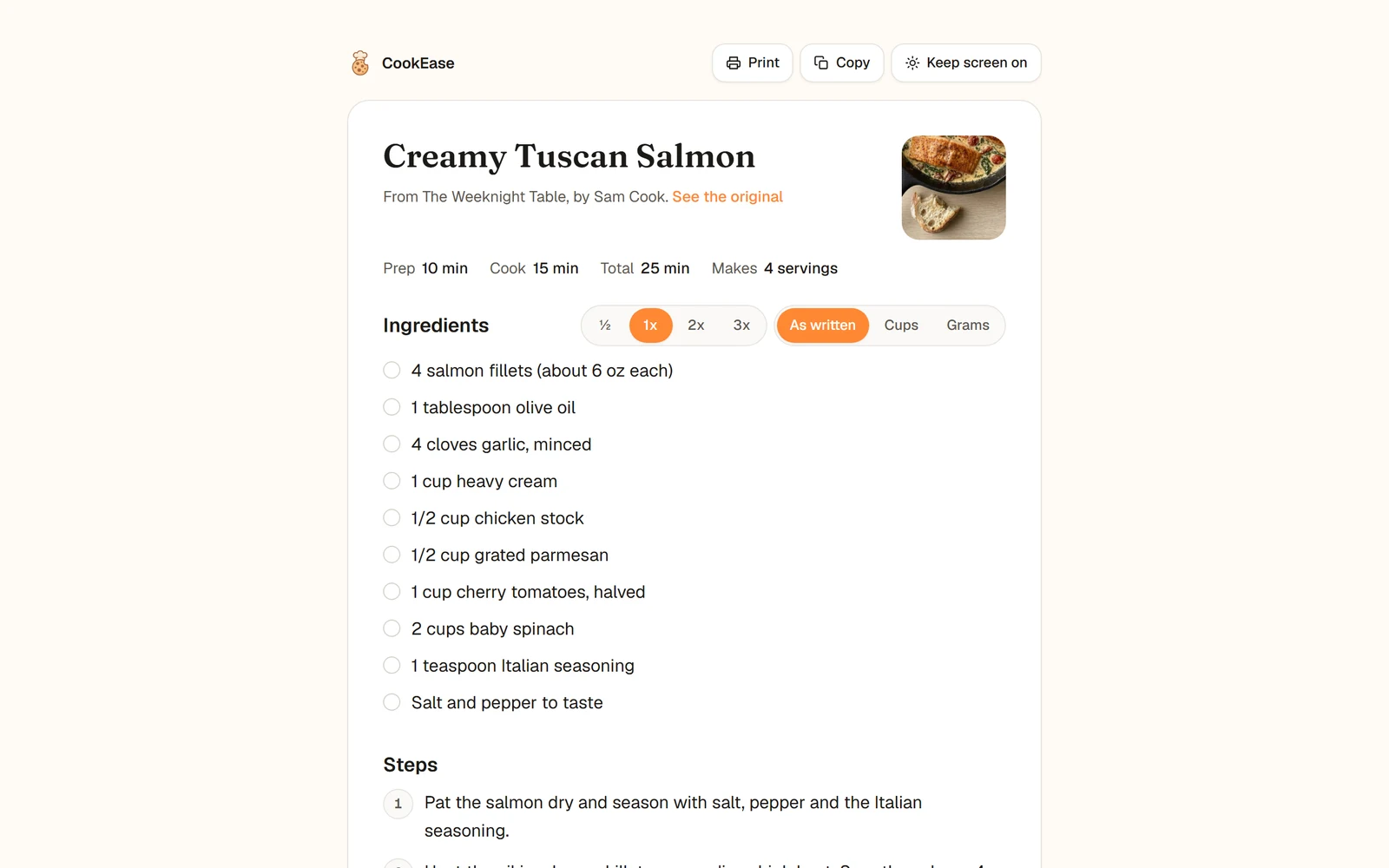
Full page: room to cook from, and a clean print.
Save a recipe
Click Save to CookEase, in the window or on the full page. Saving is the one thing that needs a free CookEase account.
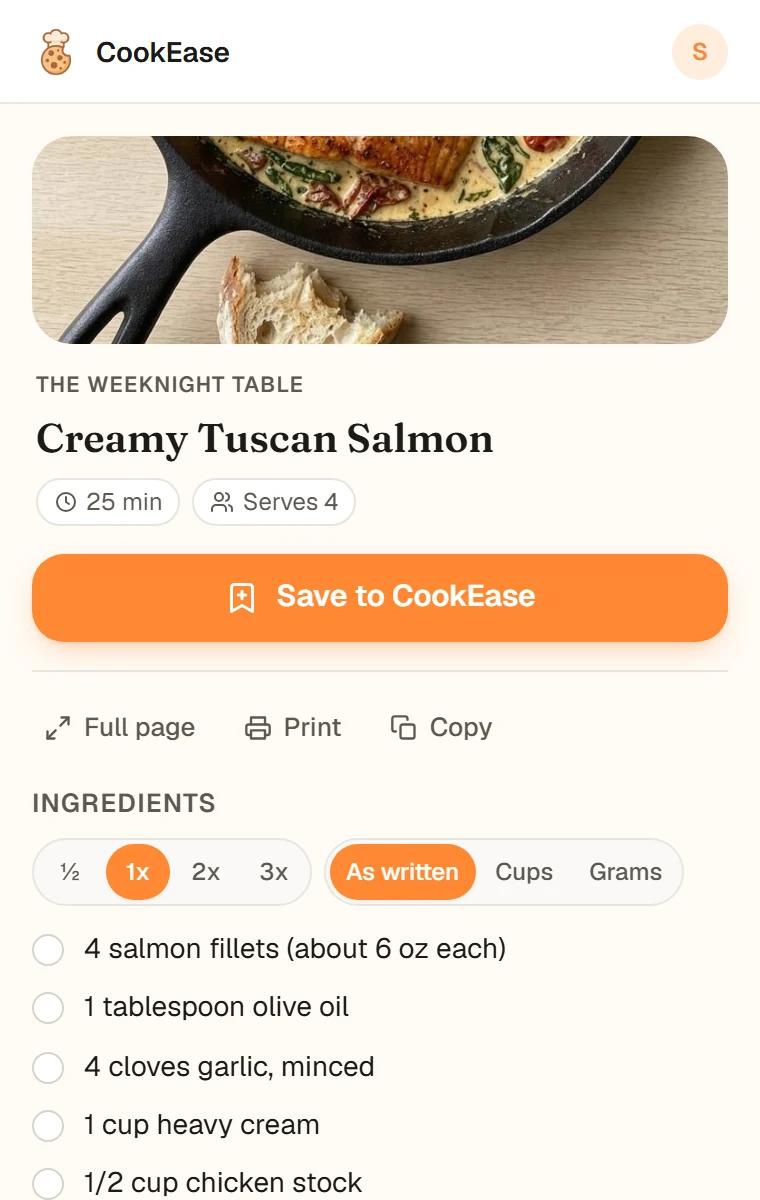
Click Save to CookEase.
- 1
No account yet?
The window says Keep this recipe. Choose Create a free account, or I already have an account to sign in. - 2
Sign up or sign in on the website
A CookEase tab opens. When you are in, it says You're all set and that it is saving your recipe to your cookbook now. - 3
That is it
The recipe you pressed Save on is saved by itself. You can close the tab. From then on, Save to CookEase saves in one click.
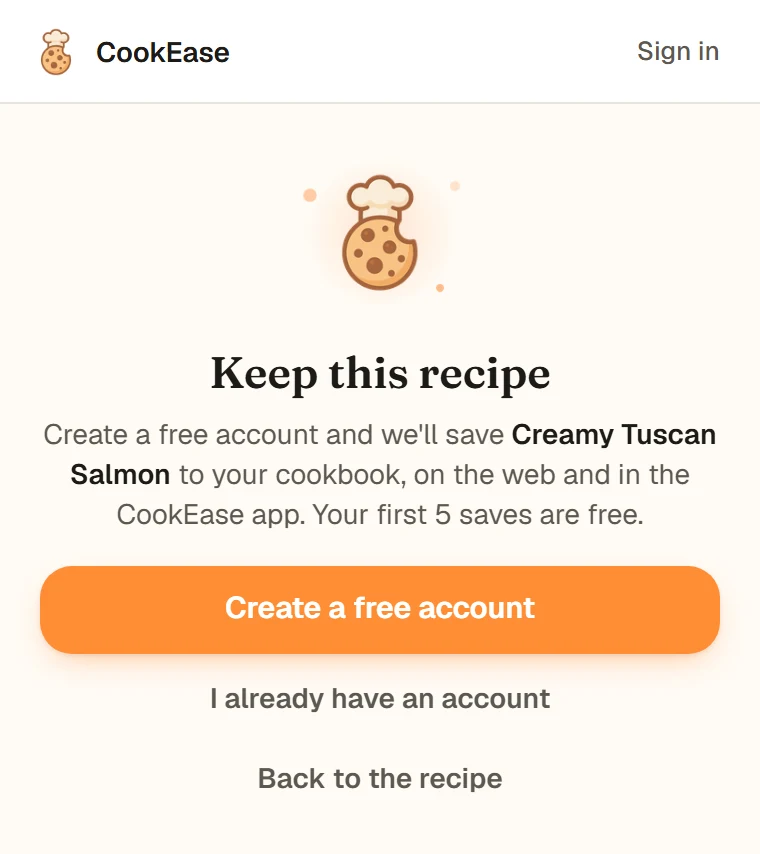
Pressed Save with no account? Create one and the recipe is kept.
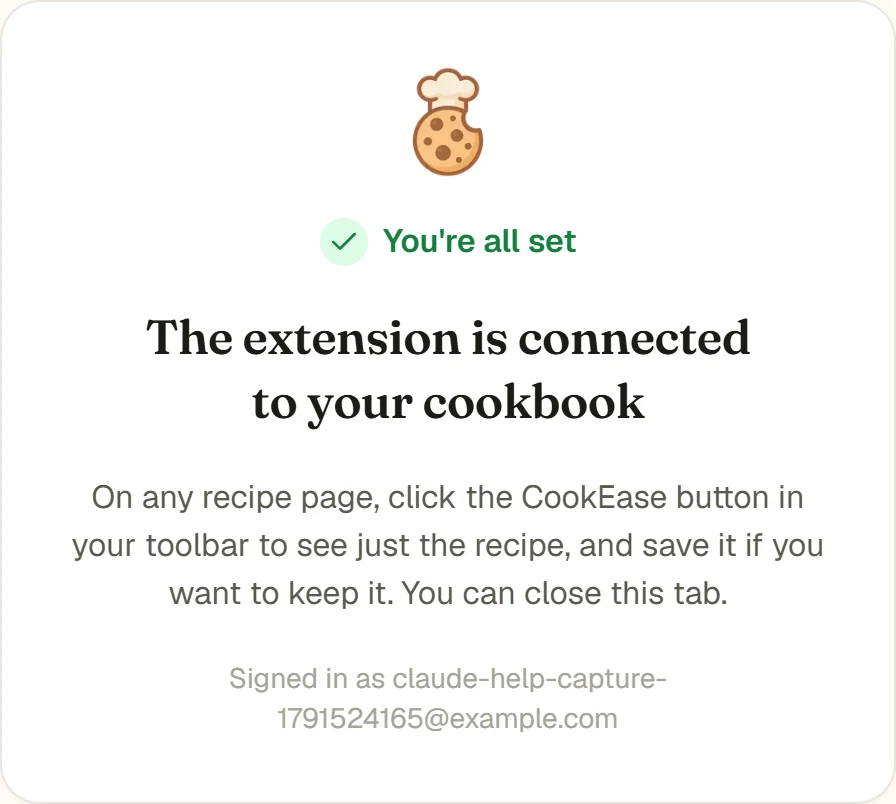
Connected to your cookbook.
Already have an account? Click Sign in at the top of the window at any time.
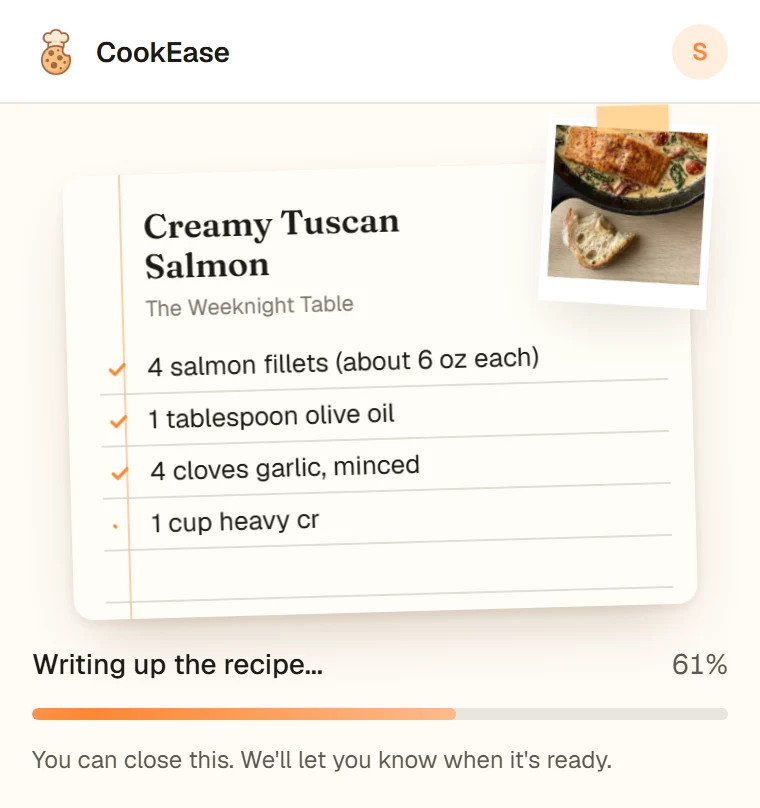
The recipe card writes itself as it saves.
- You can close the window while it saves. The save keeps going, the CookEase button shows its progress, and your browser tells you when the recipe is ready.
- File it as you go. A Saved stamp lands on the recipe when it is done. Under Saved to your cookbook, tap a cookbook under Add to a cookbook, or + New to make one. Open recipe opens it on the website.
- No doubles. On a page you have saved before, it says Already in your cookbook and the day you saved it, with Save another copy if you want one.
- Once in a while, a question. After a few saves, the saved screen may ask once: Finding this handy? Leave a quick review. It is up to you, and it does not ask again.
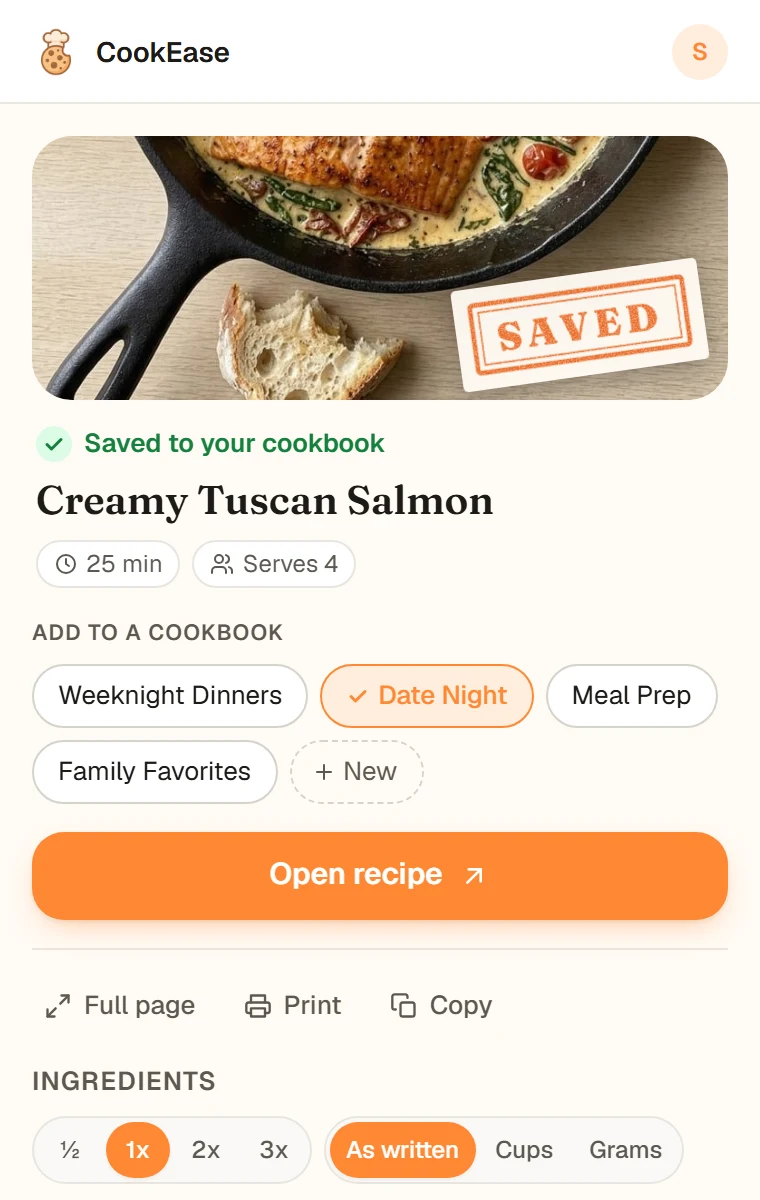
Saved, and one tap to put it in a cookbook.
Recipes from videos
A YouTube, TikTok, Instagram, Facebook or Pinterest video has no written recipe on the page, so there is nothing to show. On those, the button only saves: click Save to CookEase and CookEase watches the video and writes the recipe down, the same way the app does. That needs the free account. See saving from social apps.
On a profile, a search or another page of those sites that is not a video itself, the window says Open a video to save its recipe. Open the video or post, then click the CookEase button again.
Find the recipes in your bookmarks
Years of recipe bookmarks? The extension can find them and save the ones you pick.
- 1
Open it
Signed in, click the round account button at the top of the window, then Bring in recipe bookmarks. With no account, click Find recipes in my bookmarks at the bottom of the window. - 2
Let it look
On the page Find the recipes in your bookmarks, click Look through my bookmarks. Your browser asks you to allow it. Choose Allow. - 3
Pick the recipes to keep
It lists the bookmarks that look like recipes. Check the ones you want. - 4
Save them
Click Save 3 recipes (the button counts your picks). They are saved one after another, about half a minute each, and you can keep browsing.
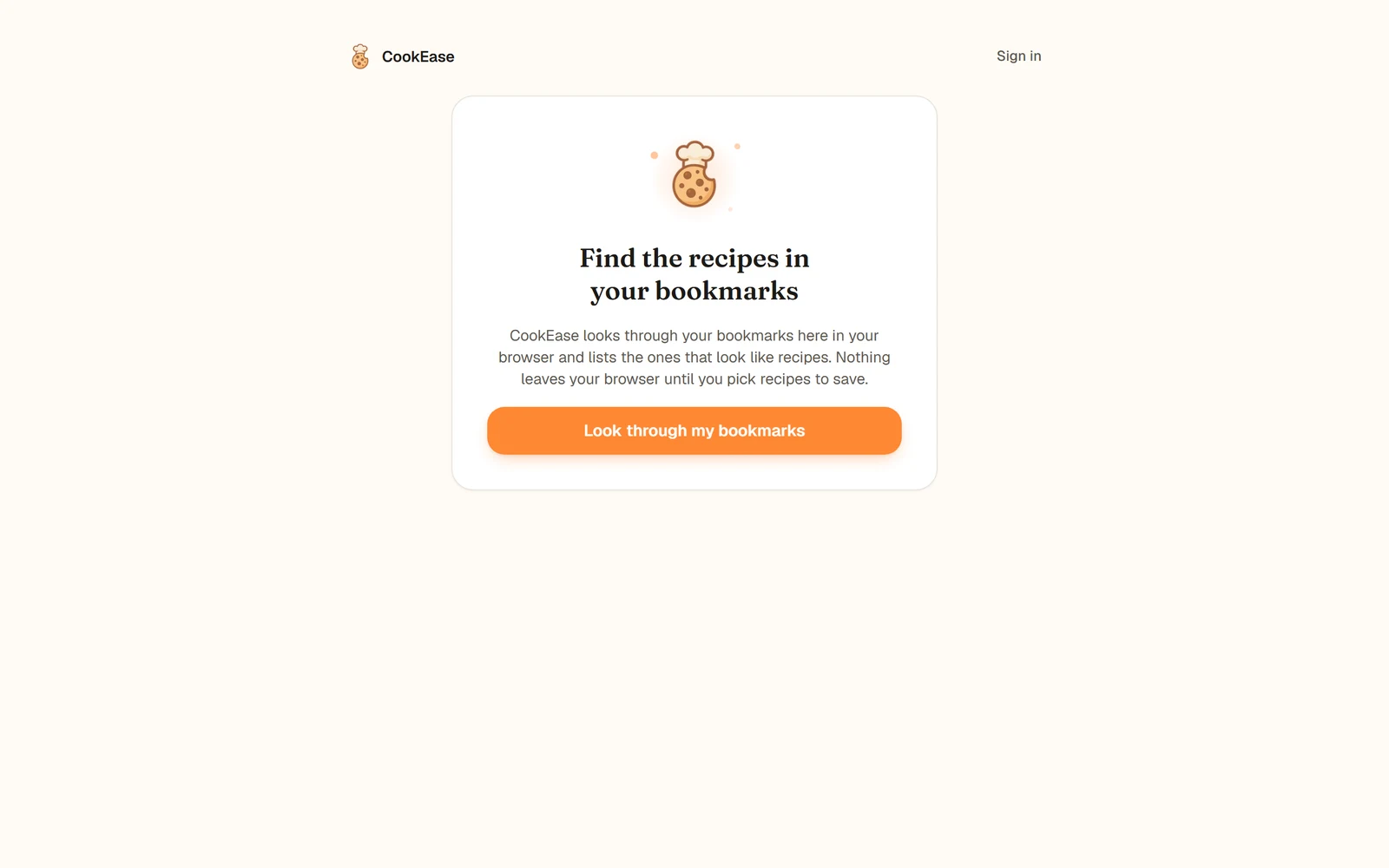
Nothing is read until you click.
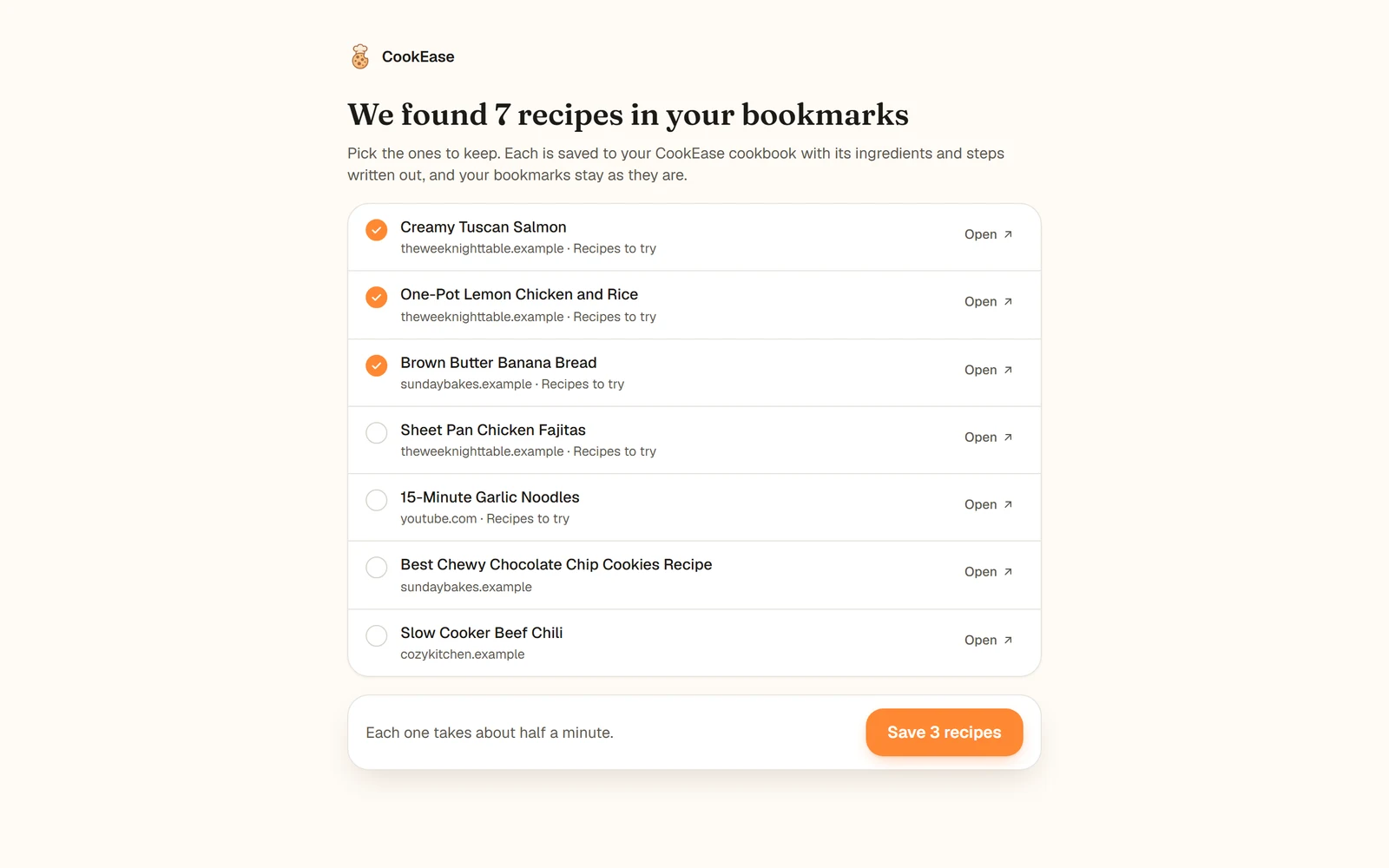
Check the recipes to keep, then save them.
- Each recipe uses one save, like any other save, and up to 30 are saved at a time.
- Your bookmarks are not changed. Nothing is moved, renamed or deleted.
- Some sites only save from the open page. Those bookmarks say Open it and click the CookEase button to save it. Click Open beside one and save it from its page.
- No account yet? You can look and pick first. The button reads Create a free account, and your picks stay where they are.
Sites that do not let apps read their recipes
Allrecipes, Serious Eats, Simply Recipes and a few other big sites do not let apps open their links, so pasting one of their links into CookEase does not work. The extension works on them, because it reads the page you already have open in your browser. Open the recipe, click the button, and save it like any other. More in saving from websites.
When it does not find a recipe
On a page that does not publish a recipe in the standard format, it says We didn't spot a recipe on this page. If you are signed in and can see a recipe there, click Save anyway: CookEase reads the whole page, and if there really is no recipe, nothing is used up. Browser pages such as a new tab or the extension store cannot be read by any extension, so there it says Open a recipe to save it, or shows its welcome screen when you have no account.
Free saves and Pro
Seeing a recipe, resizing it and printing it use nothing, however often you do it. A save from the extension counts like a save anywhere else. Your first 5 saves are on us, you can keep saving for free in the phone app by watching 2 short videos per save, and with CookEase Pro saves are unlimited. When the window shows how many saves are left, it is the same number you see on the website and in the app, and clicking it explains how to get more free saves with videos in the app. See what you get free, and what Pro adds.
What it can see
- Only the page you click on. The extension reads a page only when you click its button on that page. It does not read, record or send any other pages you visit.
- With no account, nothing is sent. The recipe you see is worked out inside your browser.
- When you save, it sends only that page's address and its recipe to your CookEase account.
- Your bookmarks are read only after you click Look through my bookmarks and allow it. It is never asked when you add the extension. The list is made in your browser, and only the links you pick are sent, to save them.
To sign out, click the CookEase button, then the round account button at the top of the window, then Sign out. More in privacy and your data.