
Get Any Recipe Into CookEase
CookEase saves recipes from links, photos, screenshots, and plain text - so whatever form a recipe is in, there is a route that gets it into your cookbook. This article covers the fastest one for each situation.
The few pages no link can reach
A handful of pages are closed to everyone who is not signed in - not a CookEase limitation, just how those pages work:
- Pages that require a login or subscription. Paywalled recipe sites and members-only posts are closed to anyone not signed in.
- Private, unlisted, or deleted videos. If a link cannot be opened in a fresh browser window, there is nothing on it to read.
- Links that are not a single recipe. A profile page, a hashtag feed, or a search result has no one recipe to save.
Every one of these recipes still saves perfectly - just take a picture of the recipe or copy and paste it using one of the routes below.
What to do instead
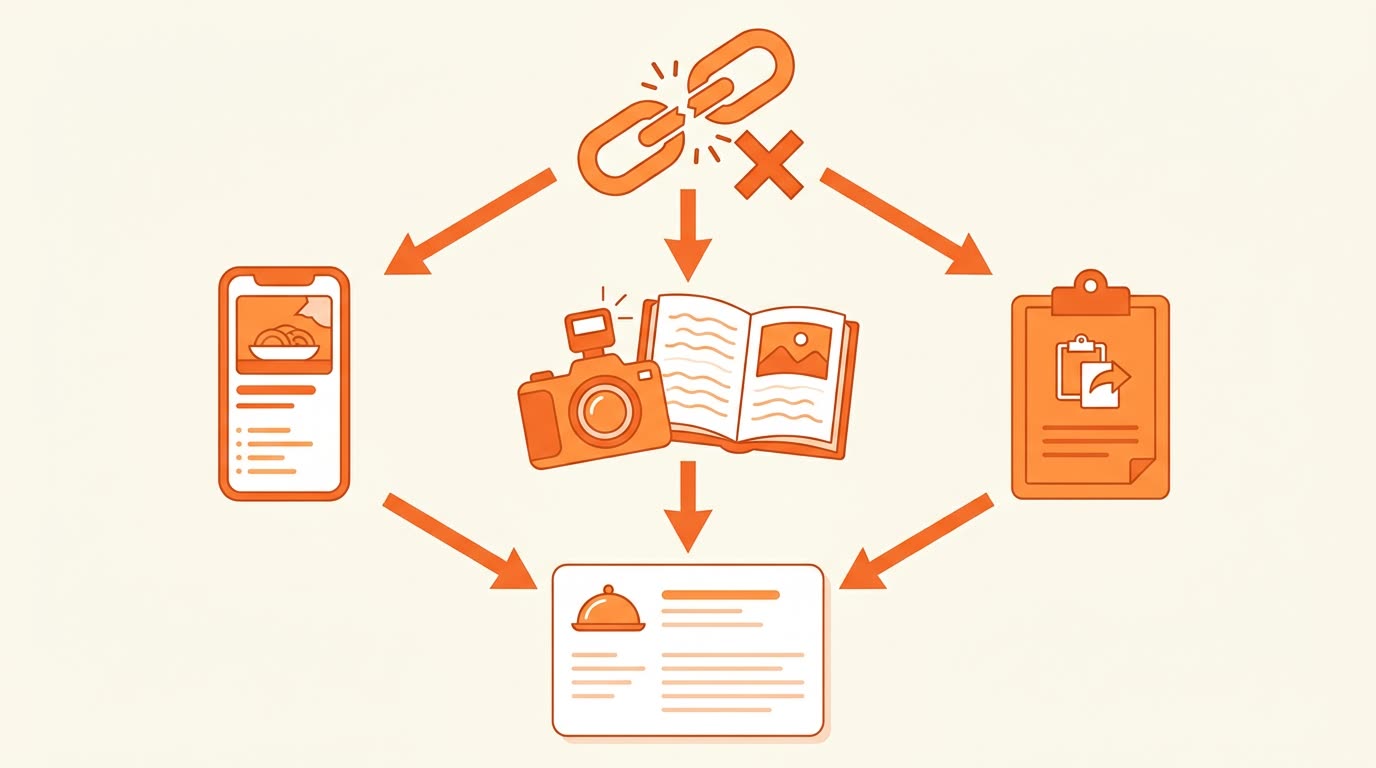
You are not stuck. Three other routes skip the page entirely and end up at the same recipe card:
- Screenshot it. Capture the recipe on your phone and save from the image. This works well for Instagram and TikTok captions.
- Photograph it. For a printed page or a cookbook, take a photo and upload that.
- Paste it. Select the recipe text, copy it, and paste it into the paste tool. This one works every time, because CookEase reads exactly the text you give it.
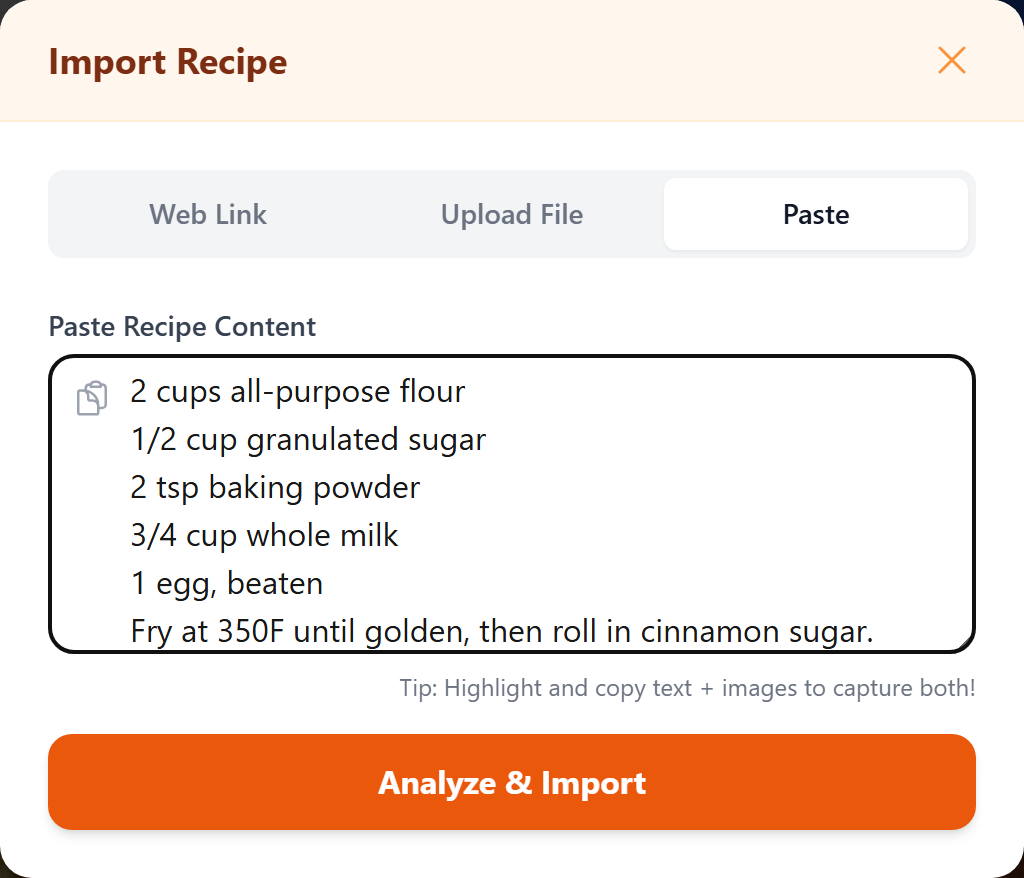
If a link does not come through, pasting the text is usually faster than fiddling with the link.
How CookEase reads video recipes
Video recipes are where CookEase does the most work for you. For YouTube, CookEase reads the description, the creator's own comments, which is where a pinned ingredient list usually lives, and the spoken transcript. For TikTok and Instagram it reads the caption and watches the video itself, with sound.
That is why CookEase is the most accurate recipe saver on the App Store and Google Play: ingredients and amounts come through even when the creator never wrote them down. And every recipe stays fully yours - anything can be tweaked in Edit to match exactly how you cook it.
Adjusting a saved recipe
- Open the recipe and choose Edit.
- Change any quantity, unit, or ingredient name directly in the row.
- Add ingredients, delete anything that does not belong, and reorder rows with the up and down arrows.
- Adjust the servings count if you like, since nutrition per serving is calculated from it.
- Save.
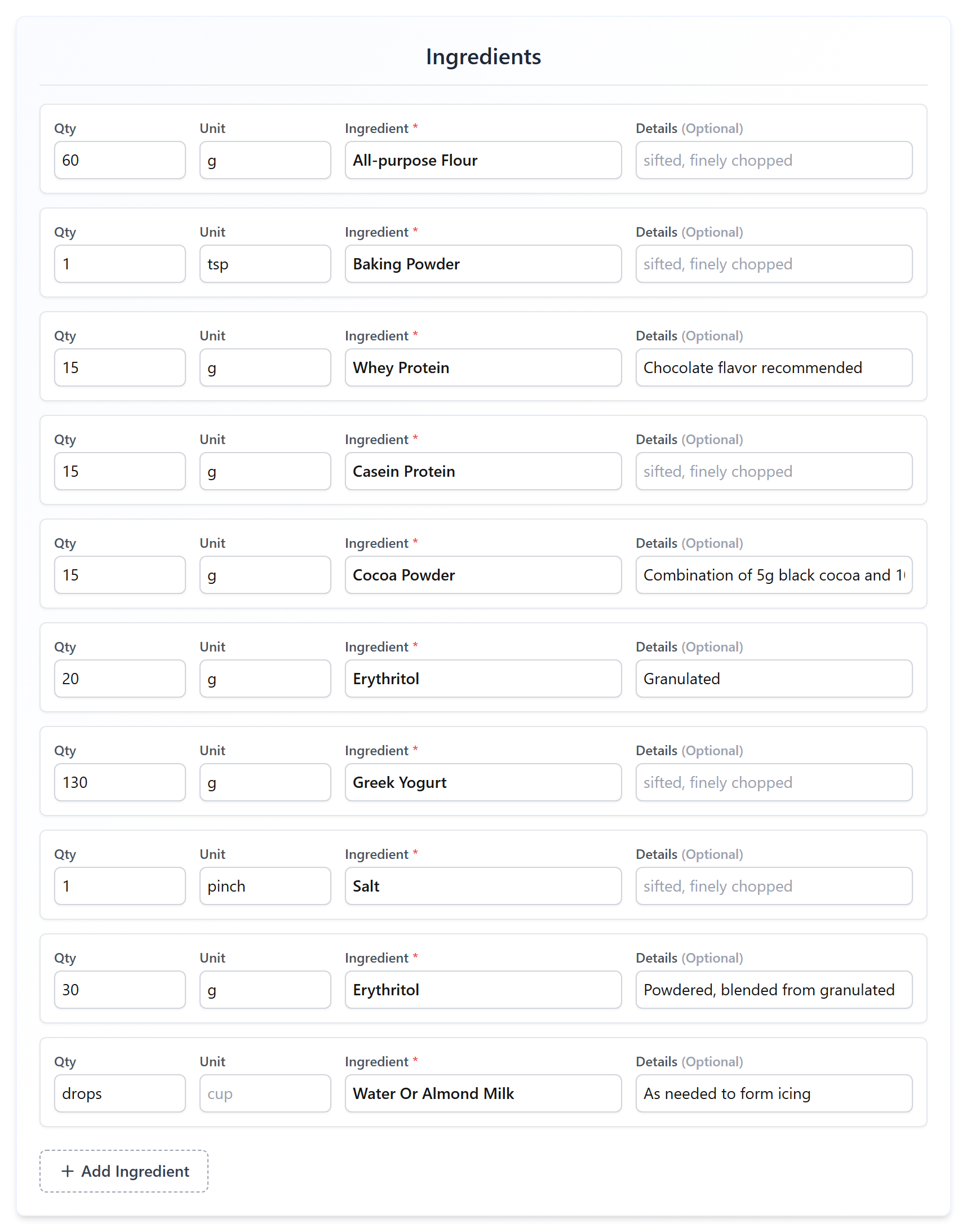
Your edits are permanent. CookEase never overwrites your changes.
Hitting the free limit
If you see a message about reaching your limit, you have used your account's one-time free allowance for that action. You can earn more - 20 saves per friend - for every friend who joins through your referral link, or upgrade to CookEase Pro for unlimited use, starting with a 7-day free trial. Reaching a limit never touches recipes you have already saved.
When the voice assistant does not respond
Three things to check, in order:
- Microphone permission. CookEase needs access to your microphone. On iPhone this is in Settings under CookEase. On Android, open Settings, then Apps, then CookEase, then Permissions, and allow Microphone.
- Internet connection. The assistant does its listening over the internet, so it cannot work offline.
- Background noise. A kitchen fan, running tap, or music is the usual reason the assistant misses something. Pause it and try again.
If all three are fine and it still will not respond, leave a slightly longer pause after speaking. The assistant waits for a gap before it acts on what it heard.