
CookEase looks a little different on a computer and on a phone, but it is the same four places everywhere: your cookbook, Discover, the Recipe Crafter and your shopping lists. Here is where everything lives.
On the website
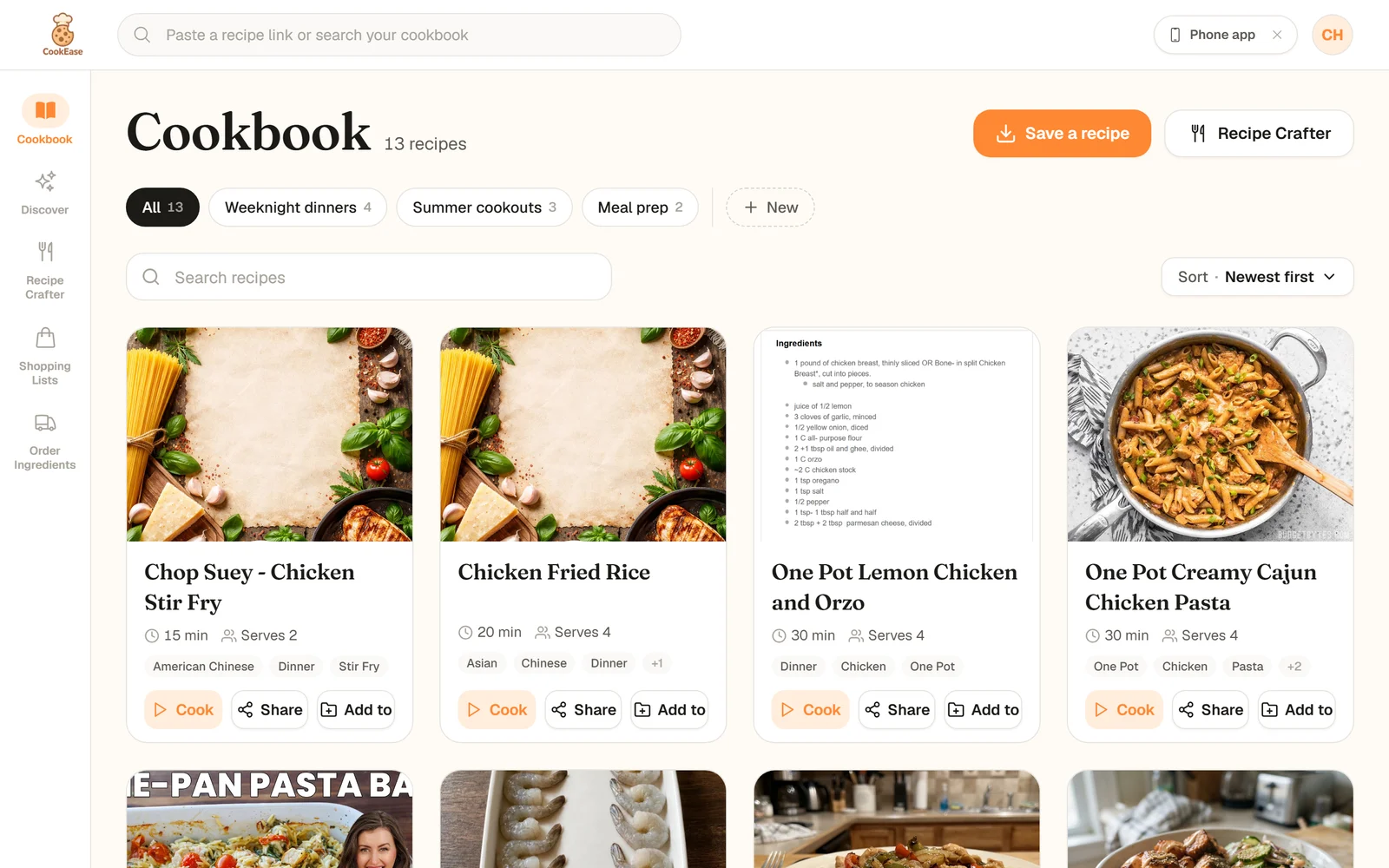
- 1The menu Cookbook, Discover, Recipe Crafter, Shopping Lists and Order Ingredients.
- 2Paste or search Paste a recipe link to save it, or type to search your cookbook.
- 3Save a recipe Save from a link, a photo, a PDF or pasted text. Recipe Crafter sits next to it.
- 4Your cookbooks All your recipes, or one cookbook at a time. + New makes a cookbook.
- 5Phone app A shortcut to get the app on your phone. Close it with the x.
- 6Account menu Your profile, plan, invites, the FAQ and Help and feedback.
The menu on the left
- Cookbook: every recipe you have saved, your cookbooks, search and sorting.
- Discover: recipes from creators and other home cooks you can save in one tap.
- Recipe Crafter: make a new recipe from a craving or what is in your kitchen.
- Shopping Lists: lists sorted by aisle, made from your recipes, by voice or by typing.
- Order Ingredients: send a list or a recipe to Instacart or Amazon Fresh.
Opening a recipe keeps Cookbook highlighted, since the recipe lives there. The Cooking Assistant opens full screen; close it with the x in the top left to get back.
The paste and search field
The field at the top of every page, Paste a recipe link or search your cookbook, does two jobs. Paste a link and the save starts right away (type a link instead and it offers Save this recipe to your cookbook). Type a word instead and it shows up to 6 matching recipes from your cookbook as you type, with Show all matches for at the bottom. Press Cmd + K on a Mac or Ctrl + K on Windows to jump straight to it, use the arrow keys to pick a recipe and Enter to open it.
Ctrl+K, then type: matching recipes appear as you go.
The account menu
Click your initials in the top right corner:
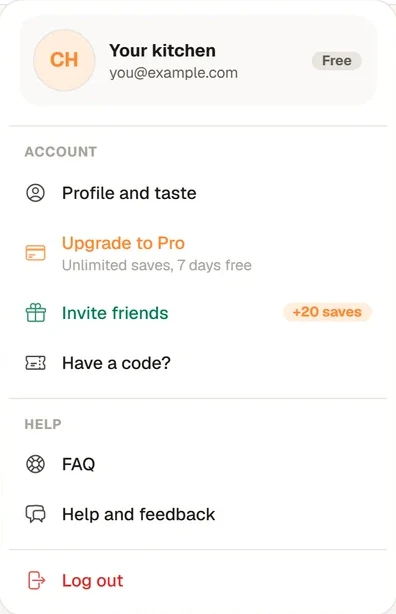
- Profile and taste: your taste profile, display name, avatar and account settings.
- Upgrade to Pro or Manage subscription: your plan.
- Invite friends and Have a code?: get more free saves.
- FAQ: these help pages. Help and feedback: write to the team.
- Log out.
On a phone-sized screen
Open cookeaseapp.com on a phone and the menu moves to a bar at the bottom with Cookbook, Discover, Recipe Crafter and Shopping Lists. Order Ingredients becomes a button at the top of Shopping Lists. The paste and search field sits under the logo.
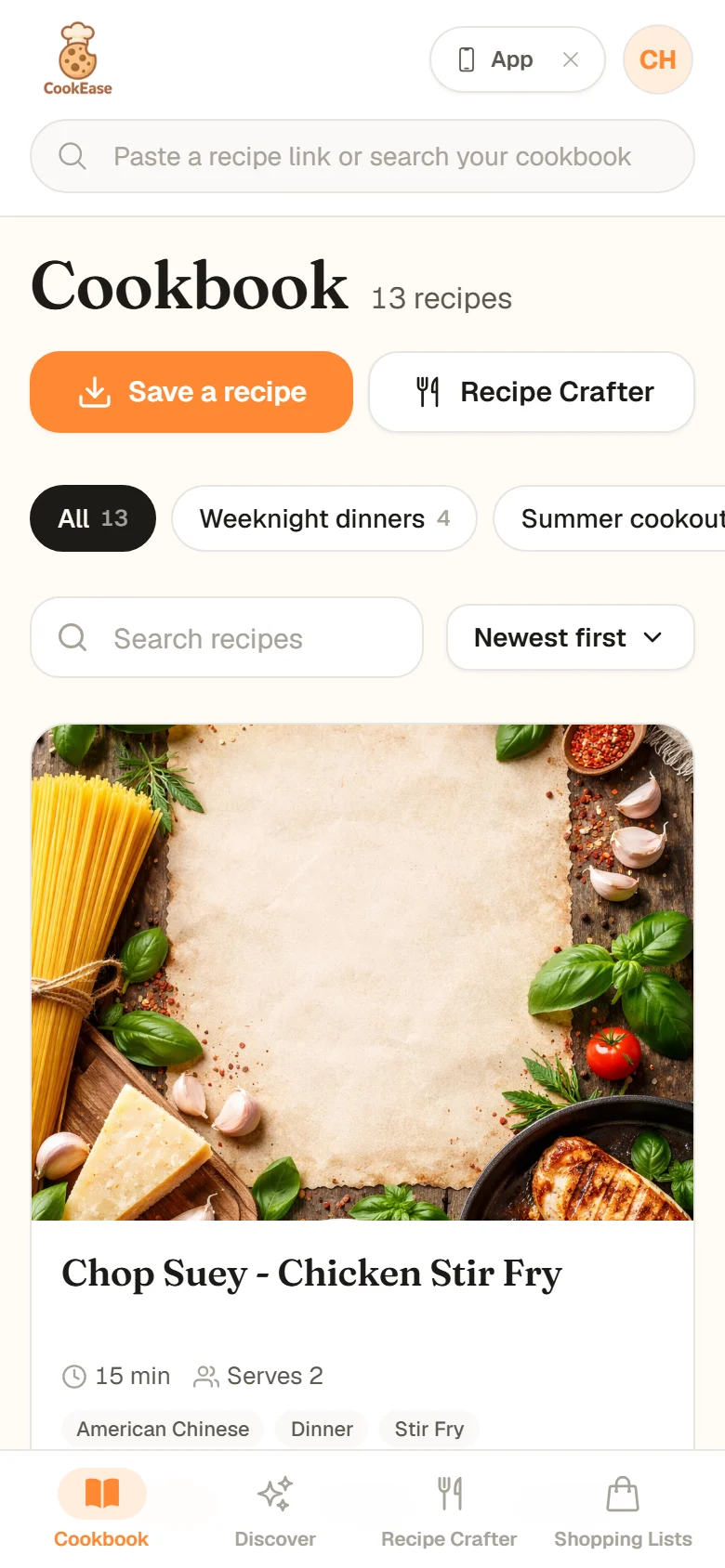
The website on a phone.
In the iPhone and Android app
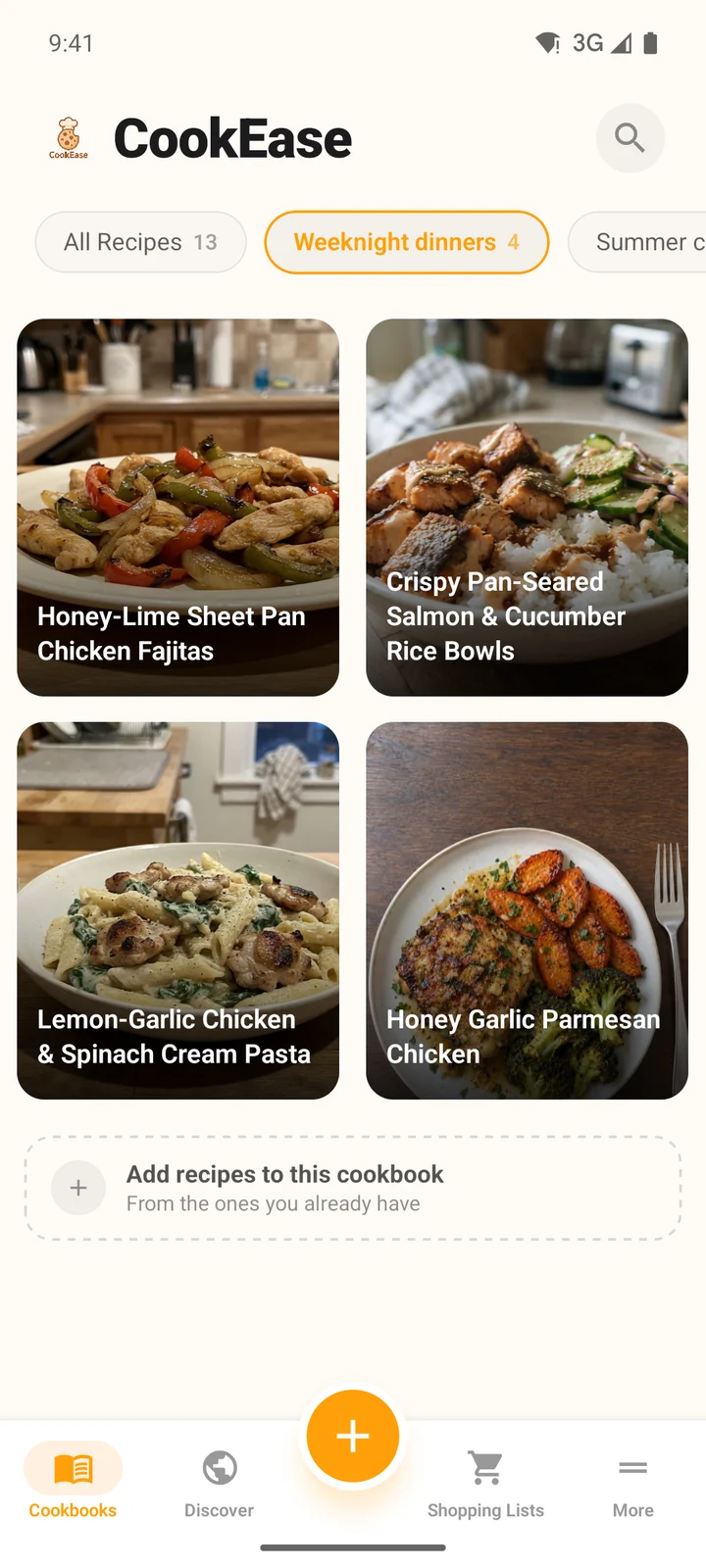
- 1Cookbooks Everything you have saved. Tap a chip to see one cookbook.
- 2Discover Creators and community recipes to save.
- 3The orange + Save a Recipe (link, scan or text) and the Recipe Crafter.
- 4Shopping Lists Your lists, sorted by aisle.
- 5More Your plan, taste profile, invites, reminders, settings and help.
- 6Search Find a recipe in your cookbook.
A quick tap through every tab.
Handy things to know in the app
- Long-press a recipe tile to add it to a cookbook, edit it or delete it. Long-press a cookbook chip to rename or delete that cookbook.
- On a recipe, the pencil edits it, Cooking Assistant starts cooking, and the ... button has Add to Cookbook, Create Shopping List, Order Ingredients and Share.
- The Recipe Crafter is not a tab of its own: tap the orange +, then Recipe Crafter.
The More tab
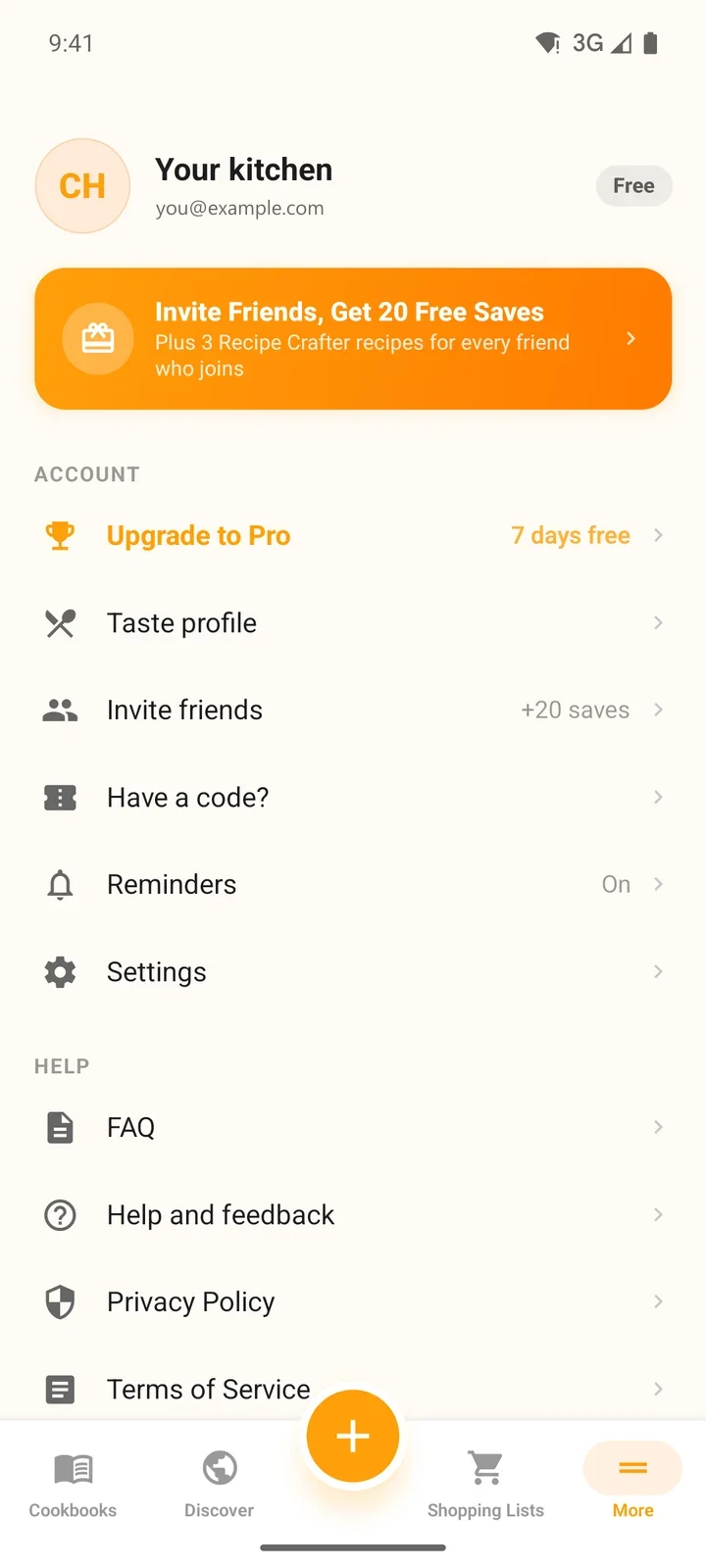
- Account: Upgrade to Pro (or Manage subscription), Taste profile, Invite friends, Have a code?, Reminders and Settings.
- Help: FAQ, Help and feedback, Privacy Policy and Terms of Service.
- Log Out at the bottom, with the app version under it.
- Settings holds My subscription, Wake word, People you have hidden, Help, Log out and Delete Account.