
When the Cooking Assistant does not react to your voice, it is almost always one of five things: microphone access, the listening mode, the wake phrase, background noise, or the free daily limit. Work down this page in order.
1. Give CookEase your microphone
CookEase asks for the microphone the first time you tap the mic in cook mode. If you said no, it cannot hear you until you turn access back on.
The first time, your iPhone asks to let CookEase use the microphone. For hands-free (Continuous) listening it also asks for Speech Recognition. Tap Allow on both.
If you tapped Don't Allow, the assistant bar says CookEase needs microphone access to hear you. You can turn it on in Settings.
To fix it:
- 1
Open Settings
Open your iPhone's Settings app and find CookEase (on newer iPhones it is under Apps). - 2
Turn on both switches
Turn on Microphone and Speech Recognition. - 3
Go back to cook mode
Return to CookEase and tap the mic again.
The first time, CookEase explains why it needs the microphone with a Cook hands-free sheet. Tap Continue, then choose While using the app when Android asks.
If you refused it before, CookEase shows Your microphone is off instead. Tap Open Settings, then Permissions, Microphone, and choose Allow only while using the app. Come back to CookEase and tap the mic again.
Your microphone is off, then Open Settings and Permissions.
Your browser asks to use the microphone the first time you tap the mic. Choose Allow. If you blocked it, you will see Your microphone is blocked for CookEase. Allow it in your browser's site settings, then try again.
or Microphone access is needed for hands-free mode.
- Chrome and Edge: click the icon at the left end of the address bar, set Microphone to Allow, then refresh the page.
- Safari on a Mac: choose Safari, then Settings for cookeaseapp.com, set Microphone to Allow, then refresh.
- On a Mac or PC, also check that the browser itself may use the microphone (Mac: System Settings, Privacy & Security, Microphone; Windows: Settings, Privacy & security, Microphone).
2. Check the listening mode
Tap the gear in the assistant bar to open Assistant settings. Under Listening you choose how the assistant hears you.
How you ask
- Single
- Website: tap the mic for each question. App: hold the mic while you speak.
- Continuous
- Tap the mic once, then say "Hey CookEase" whenever you need it
Best for
- Single
- Noisy kitchens, quick one-off questions
- Continuous
- Messy hands: no touching the screen
Available
- Single
- Everywhere
- Continuous
- iPhone, Android, and Chrome, Edge or Safari
| Single | Continuous | |
|---|---|---|
| How you ask | Website: tap the mic for each question. App: hold the mic while you speak. | Tap the mic once, then say "Hey CookEase" whenever you need it |
| Best for | Noisy kitchens, quick one-off questions | Messy hands: no touching the screen |
| Available | Everywhere | iPhone, Android, and Chrome, Edge or Safari |
Assistant settings on the website: Listening, and the wake phrase.
- In Continuous, nothing happens until you have tapped the mic once. The bar then shows Say "Hey CookEase".
- On Firefox, only Single is available. For hands-free listening, use Chrome, Edge or Safari.
3. Say the wake phrase clearly
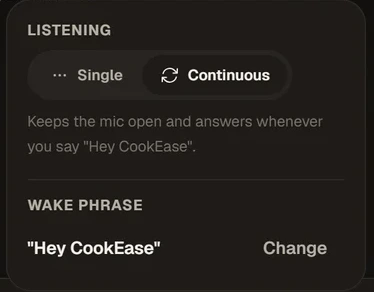
The wake phrase lives in Assistant settings, under the gear.
- Say "Hey CookEase", pause for a beat, then ask: "Hey CookEase ... next step". You can also say it to interrupt a reply.
- Check the phrase in Assistant settings: if it was changed, the new phrase is the one it listens for. Tap Change to set your own (3 to 32 letters; two words work best, because short common words can wake it by accident). In the app you can also go to More, then Settings, then Wake word, where Reset to "Hey CookEase" puts it back.
- The wake phrase is saved on each device separately, so a phrase set on the website does not change your phone.
4. Cut the noise
A range hood, a running tap, a sizzling pan or music is the most common reason the assistant misses a word or answers something you did not ask.
- Turn the fan or music down while you ask, or move your device a little closer and speak toward it.
- Switch to Single: holding or tapping the mic tells CookEase exactly when you are talking.
- If it says
Sorry, I didn't catch that.
orDidn't quite catch that.
, just ask again a little slower. - Type instead: Or type your question... on the website, or Show conversation and then Type your question... in the app.
5. Check today's free questions
Free accounts can ask 5 questions a day, and the count starts again every day at midnight UTC. On the website, spoken and typed questions each have their own 5, and once you have used them the assistant says You've used your 5 free Cooking Assistant Voice Commands for today.
In the app, spoken and typed questions share the same 5, and if the assistant says The assistant couldn't answer that. Please try again in a moment.
again and again on a free account, you have probably used today's questions. Moving through the steps with the buttons or by swiping is never counted. CookEase Pro has no limit.
Other messages
"Voice timed out. Refresh the page to keep talking - your recipe is safe."
On the website, the voice connection expired, usually after a long pause or a dropped connection. Refresh the page and start talking again. Nothing in your recipe changes.
"Sound is blocked by your browser. Tap anywhere on the page, then try again."
Browsers will not play spoken answers until you have clicked or tapped the page once. Tap anywhere, then ask again.
"We couldn't connect. Please check your internet connection and try again."
The assistant needs the internet to listen and answer. Your recipe stays on screen, so keep cooking from the steps while you reconnect.
"Today's voice limit is used up. You can still type your questions below."
On the website, you have reached the day's limit for voice sessions. Type your questions instead, or come back tomorrow.