
When your hands are covered in flour, you can talk to the Cooking Assistant instead of touching the screen. It answers out loud and can move the recipe along for you. There are two ways to listen: one question at a time, or fully hands-free with a wake phrase.
Hey CookEase...
Say "Hey CookEase"
Listening only for the wake phrase. Nothing else you say is acted on.
- 1Wake it up
- 2Ask
- 3It thinks
- 4It answers out loud
Single or Continuous
You choose how the assistant listens in Assistant settings, the gear in the assistant bar at the bottom of cook mode.
How you ask
- Single
- Tap the mic (website) or hold it (app), then speak
- Continuous
- Tap the mic once, then say "Hey CookEase" and your question any time
Hands-free
- Single
- Continuous
Best for
- Single
- A quick question now and then
- Continuous
- Cooking a whole recipe without touching the screen
Starts as
- Single
- The choice in the iPhone and Android apps
- Continuous
- The choice on the website (Chrome, Edge, Safari)
| Single | Continuous | |
|---|---|---|
| How you ask | Tap the mic (website) or hold it (app), then speak | Tap the mic once, then say "Hey CookEase" and your question any time |
| Hands-free | ||
| Best for | A quick question now and then | Cooking a whole recipe without touching the screen |
| Starts as | The choice in the iPhone and Android apps | The choice on the website (Chrome, Edge, Safari) |
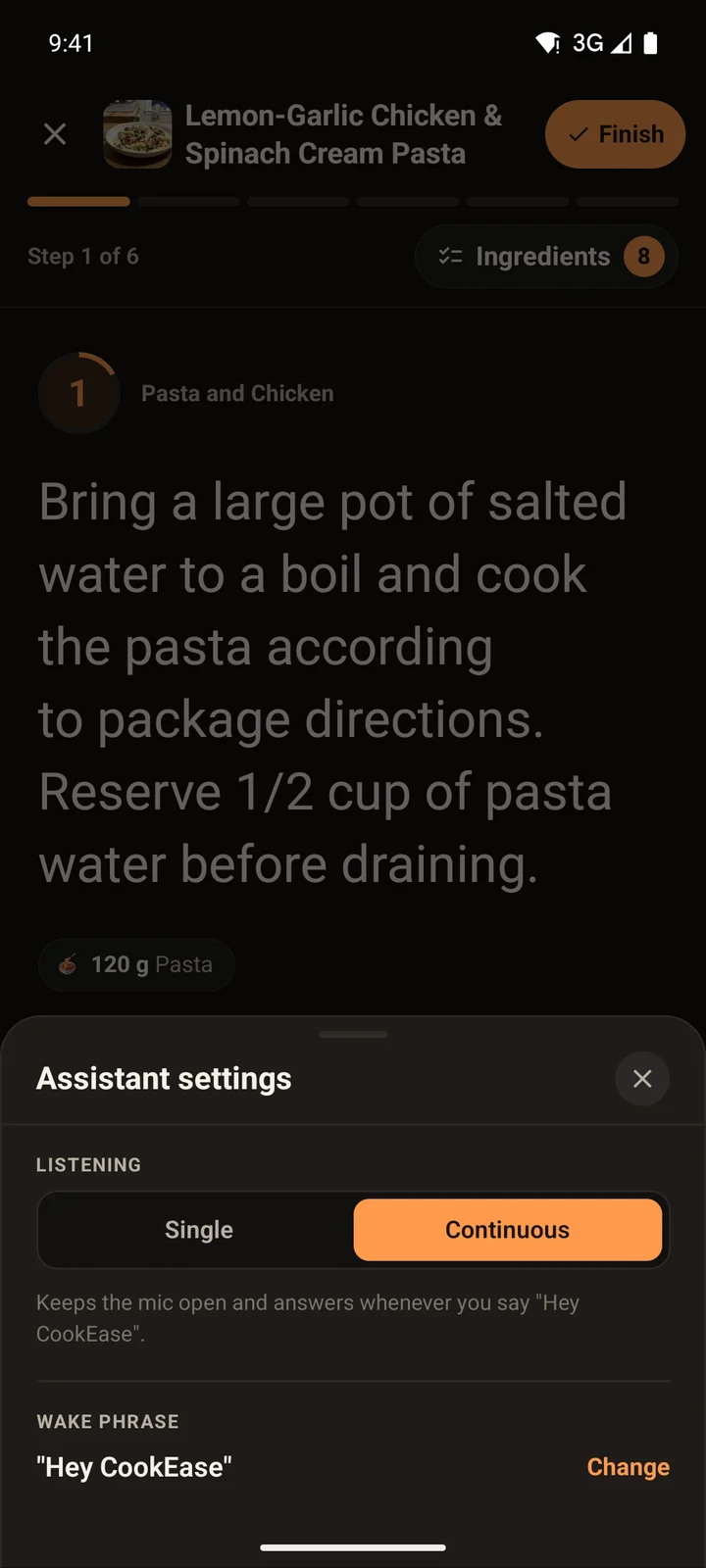
The app remembers your choice for next time. On the website, Continuous is chosen each time you open cook mode in a browser that supports it.
Cook hands-free with "Hey CookEase"
- 1
Choose Continuous
In cook mode, tap the gear and choose Continuous under Listening. On the website it is usually already on. - 2
Tap the mic once
The bar changes to Say "Hey CookEase". The first time, allow microphone access (see below). - 3
Say the wake phrase, then your question
Say "Hey CookEase" followed by what you need, in one go: "Hey CookEase, how long do I sear the chicken?" The bar shows Listening... with your words, then Thinking..., then Speaking... as the answer is read out. - 4
Keep cooking
After each answer it goes back to waiting for the wake phrase. Tap the mic again when you are done, or just leave cook mode.
Here, "Hey CookEase, next step" moves the recipe to step 2 and reads a short answer. Then "Hey CookEase, how much pasta do I need?" gets the amount for the servings on screen.
One question at a time (Single)
- Website: tap the mic, ask your question, and stop talking. The assistant answers out loud. Tap the mic again for the next question.
- iPhone and Android: hold the mic while you speak and let go when you are done.
No wake phrase is needed in Single mode.
What you can say
There is no list of fixed commands to learn: the assistant understands everyday wording and knows the recipe, your step and your servings.
Move around the recipe
- "Next step" or "what's next?"
- "Go back" or "previous step"
- "Go to step 3" (the screen jumps to step 3)
- "Read step 2" (it reads that step out loud and shows it)
Ask about the recipe
- "How much parmesan do I need?"
- "What can I use instead of milk?"
- "How long does this simmer?"
- "I added too much salt. What do I do?"
Stop it talking
Say "stop", "be quiet", "never mind", "cancel" or "pause". In Continuous listening, saying the wake phrase also stops a reply so you can ask something new.
Change the wake phrase
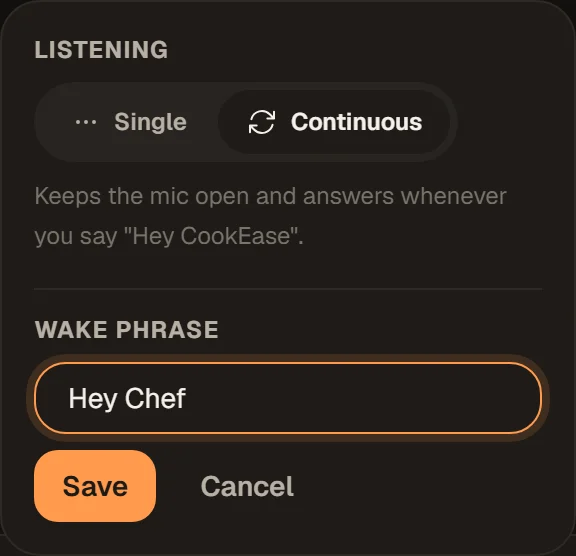
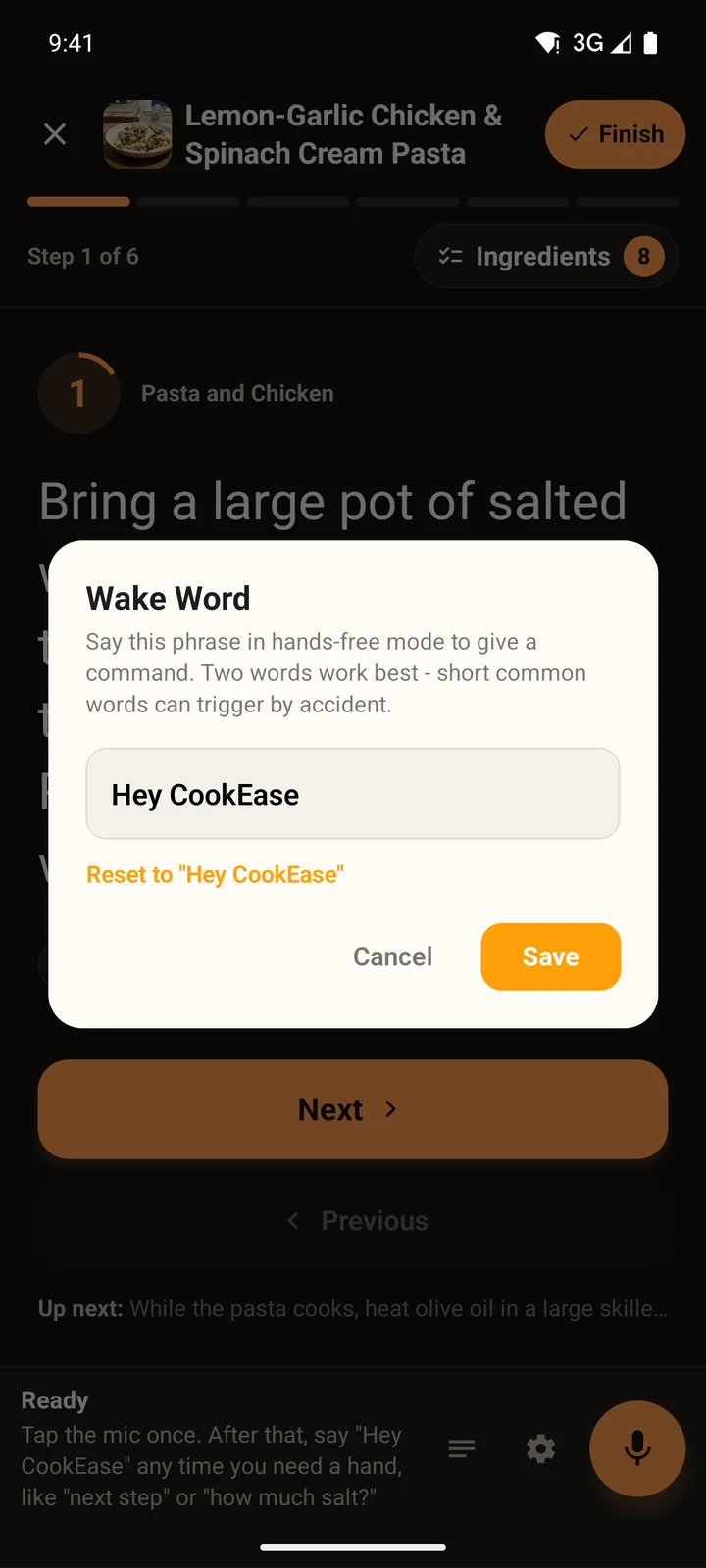
If "Hey CookEase" does not suit you (or someone in your kitchen keeps setting it off), pick your own. It can be 3 to 32 letters; two words work best, because short common words can wake it by accident. The new phrase is saved on that device.
- 1
Open Assistant settings
In cook mode, click the gear in the assistant bar. The wake phrase shows when Continuous is chosen. - 2
Click Change
Type your phrase under Wake phrase. - 3
Click Save
Leave the field empty and save to go back to "Hey CookEase".
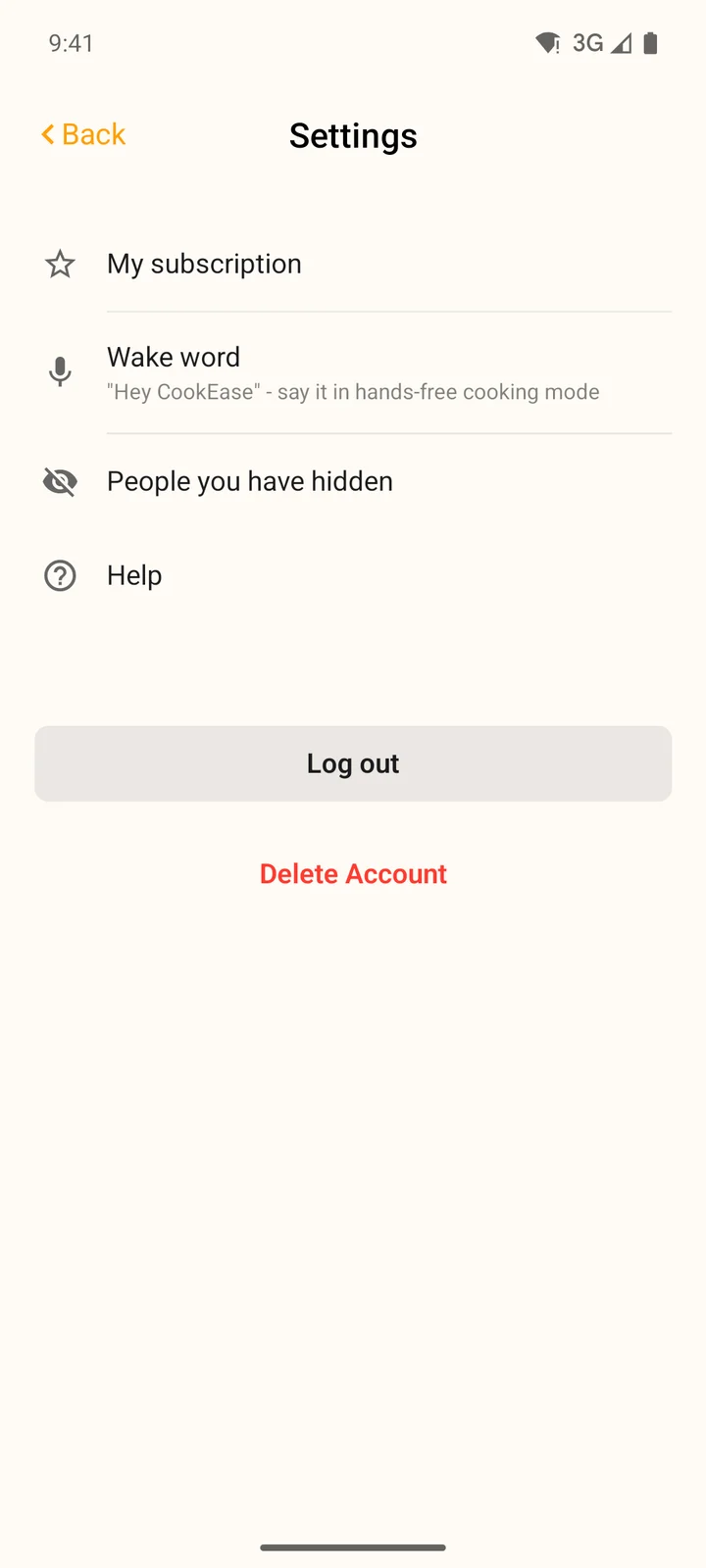
Either in cook mode: tap the gear, then Change next to the wake phrase. Or from anywhere: More, then Settings, then Wake word. Type the new phrase and tap Save, or tap Reset to "Hey CookEase".
Microphone access
- iPhone: the first time you use the mic, allow Microphone. For Continuous listening your iPhone also asks for Speech Recognition; allow that too.
- Android: CookEase first shows a Cook hands-free card explaining why. Tap Continue, then choose While using the app.
- Website: your browser asks to use the microphone. Choose Allow.
Said no by mistake, or the assistant does not react? The Cooking Assistant can't hear me walks through turning access back on for each device.