
Saving a recipe is not instant: CookEase has to read the page, or watch and listen to the video, and then write the recipe out. Here is what you see while that happens, and what to do when a save takes a while.
A whole save, start to finish: about 15 seconds for a short video.
The recipe card that writes itself
As soon as you save, a blank recipe card appears and fills in as CookEase finds each part: a photo gets taped on, the title is written across the top, and the ingredients tick in one by one. A line under the card says what is happening:
- A video (TikTok, Instagram, YouTube, Facebook): Accessing video..., Watching the video..., Extracting steps..., Double checking..., Finishing up...
- A recipe website: Opening the link..., Reading the recipe..., Identifying ingredients..., Extracting instructions..., Finalizing recipe...
- A photo, PDF or pasted text: Reading file..., Reading PDF content... or Reading pasted content..., then the same steps
When it is done, the card gets a stamp and Recipe saved!. If the link held more than one recipe, a badge like +1 more recipe says so, and each recipe is saved separately.
Keep saving in the background
Most saves take a few seconds. A long video or a slow website can take a minute or more. After about 15 seconds CookEase offers to finish without you:
A slow recipe site. The offer appears after about 15 seconds.
- 1
Tap Keep saving in the background
It says Keep saving in the background on the website and Keep Saving in the Background in the app. The save window closes. - 2
Carry on
A note says Still saving. Browse, cook, or leave CookEase. - 3
Get told when it lands
Your recipe is saved with a View recipe button.
How CookEase tells you
- Website: a message pops up in the corner, Your recipe is saved with View recipe (or 3 recipes saved with View recipes). If you closed the tab, you see it the next time you open CookEase.
- iPhone and Android: a banner at the top of the screen while you are in the app. If you have left the app and allowed notifications, you get a notification; tap it to open the recipe. The first time, the app may offer to turn notifications on with Allow. See notifications and reminders.
Each message is shown once, on whichever device you open first. If a save could not finish, you get a message saying so instead.
Canceling a save
Changed your mind? Click Cancel under the card on the website, or Cancel at the top left in the app. The save stops before anything reaches your cookbook, and it does not count against your saves. Closing the window without canceling does not stop a save: it finishes and the recipe appears in your cookbook.
Already in your cookbook
Save a link you have saved before and, instead of a second copy, CookEase shows Already in your cookbook (Already in Your Cookbook in the app) with the recipe's photo and the date you saved it. Choose Open Recipe to go to it, or Save Again for a fresh copy. Checking does not use a save; Save Again does.
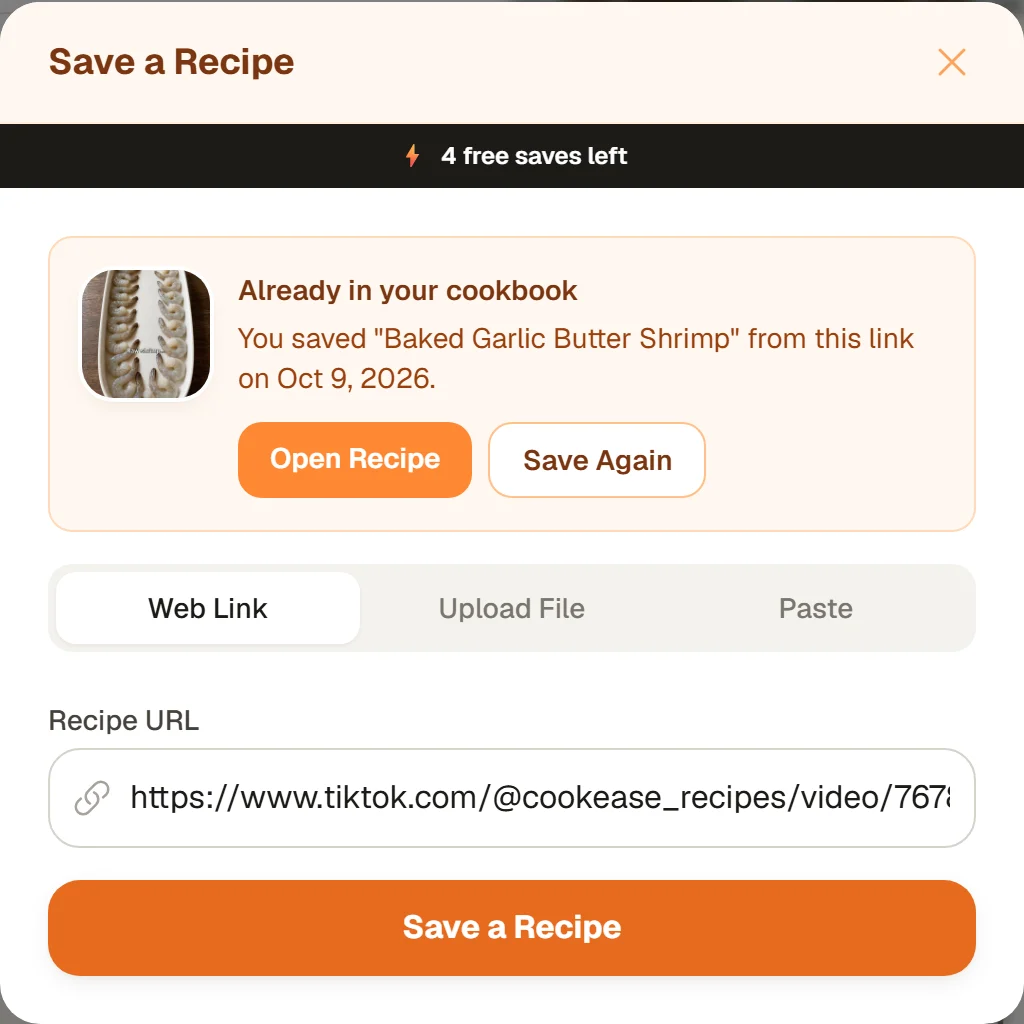
On the website, pasting a TikTok link you already saved.
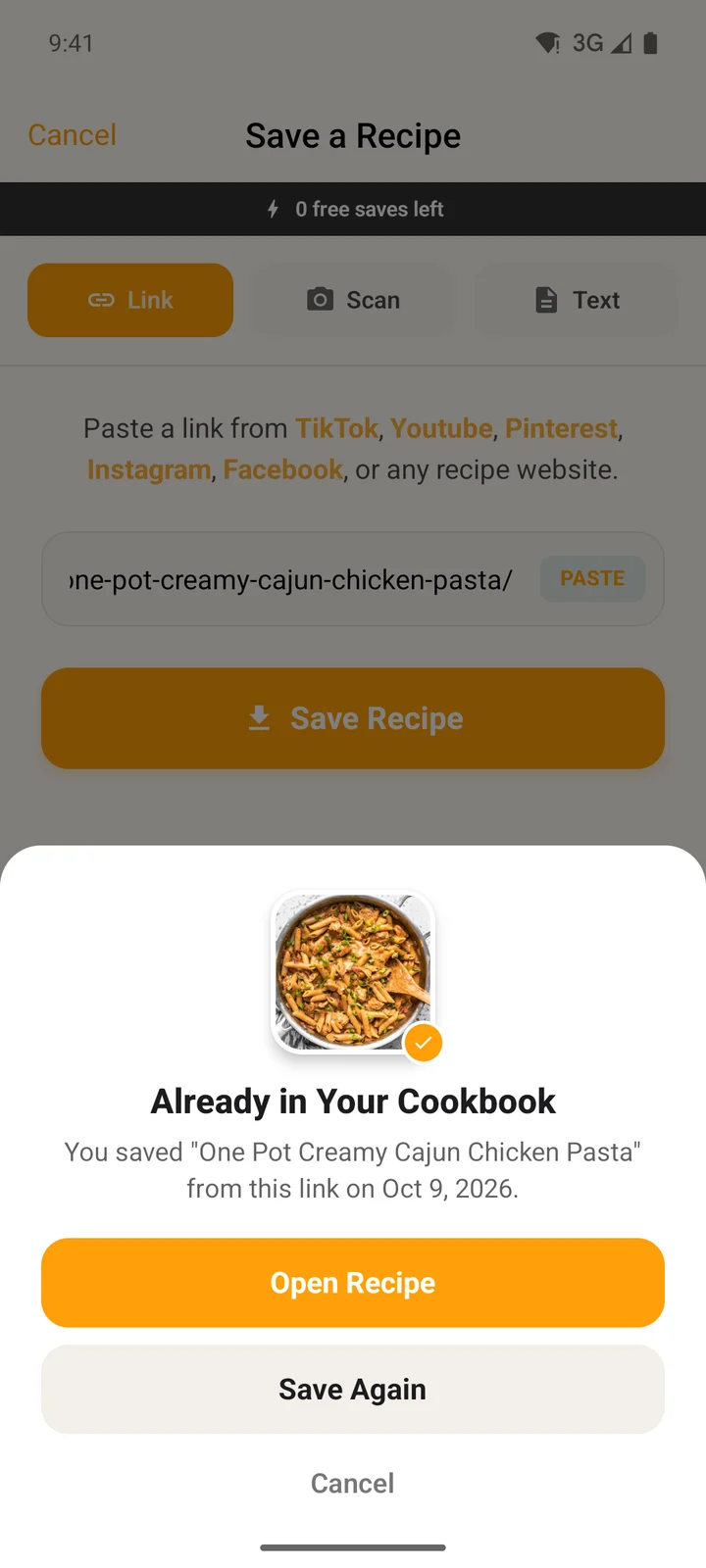
In the app, after sharing a recipe page you already saved.
Recipe Saved! Filing it away
When a recipe lands you see Recipe Saved! with Add to Cookbook (Optional) (Add to a Cookbook (Optional) in the app). Tap one or more cookbooks, or type a name into Create new cookbook..., then Done. Skipping is fine: every recipe is always under All in your cookbook (All Recipes in the app). On the website, several recipes at once show Recipes Saved! and Add All to Cookbook (Optional). In the app, the recipe then opens for you.
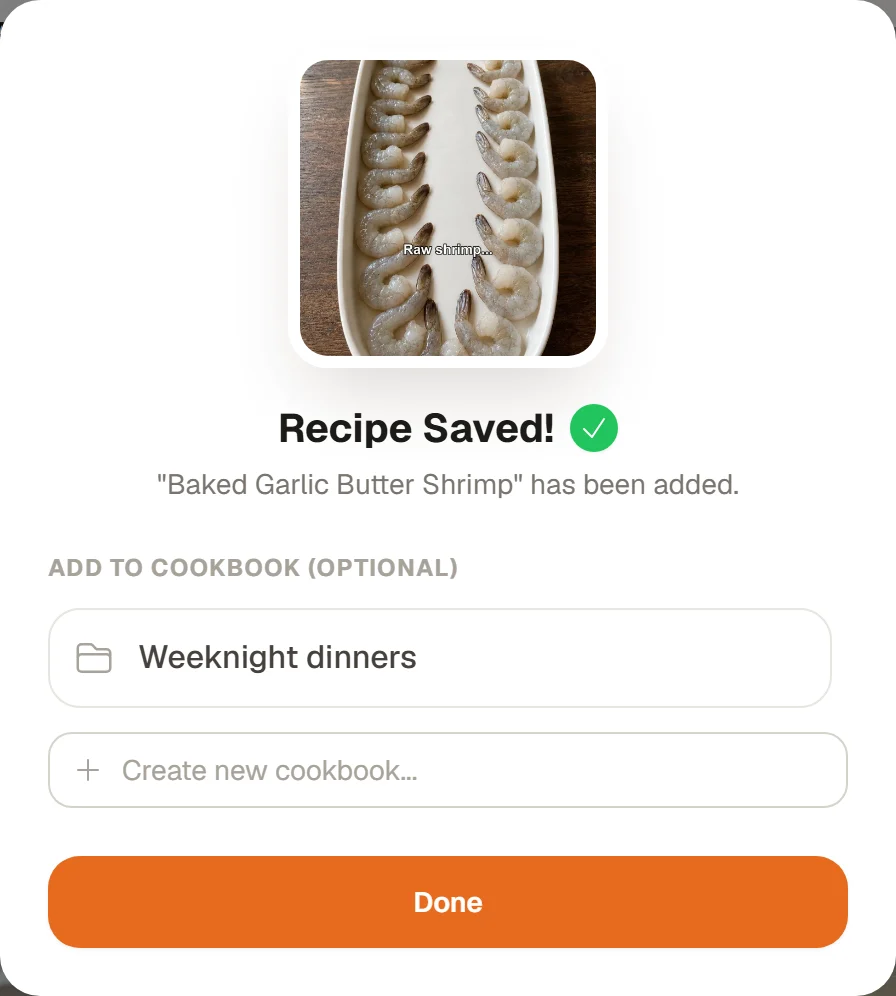
File it into a cookbook, or tap Done.
Your very first save is a little different: CookEase asks Cook it tonight? with Cooking Assistant, Add to grocery list and Not now. See saving your first recipe. Nutrition fills in a few seconds after any save.