
A CookEase shopping list knows your recipes. Pick what you are cooking this week and you get one list with every ingredient added up and sorted by aisle, so you walk the store once. Here is a list made from two recipes on the website.
Name the list
Click New list, give it a name and choose how to fill it.
- Name the list: Click New list, give it a name and choose how to fill it.
- Pick your recipes: Tap the recipes you are cooking, then Next.
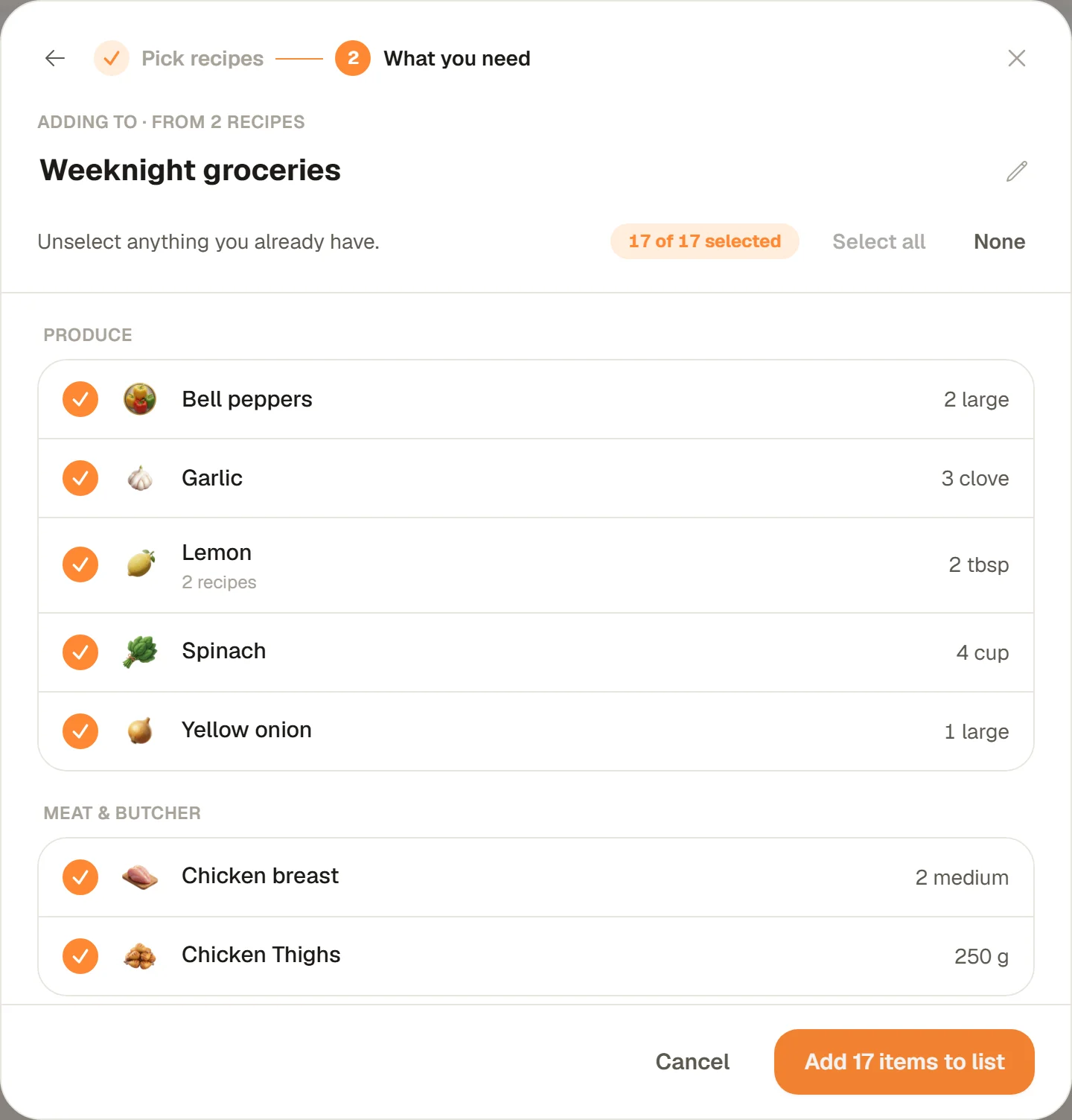
- Untick what you have: One list, added up and sorted by aisle. Untick anything already in your kitchen and add the rest.
Where to find Shopping Lists
- Website: Shopping Lists in the menu on the left (on a phone-sized screen, in the bar at the bottom).
- iPhone and Android: the Shopping Lists tab at the bottom of the app.
Shopping lists are free for everyone, with no limit on lists or items. Your lists are the same everywhere you sign in.
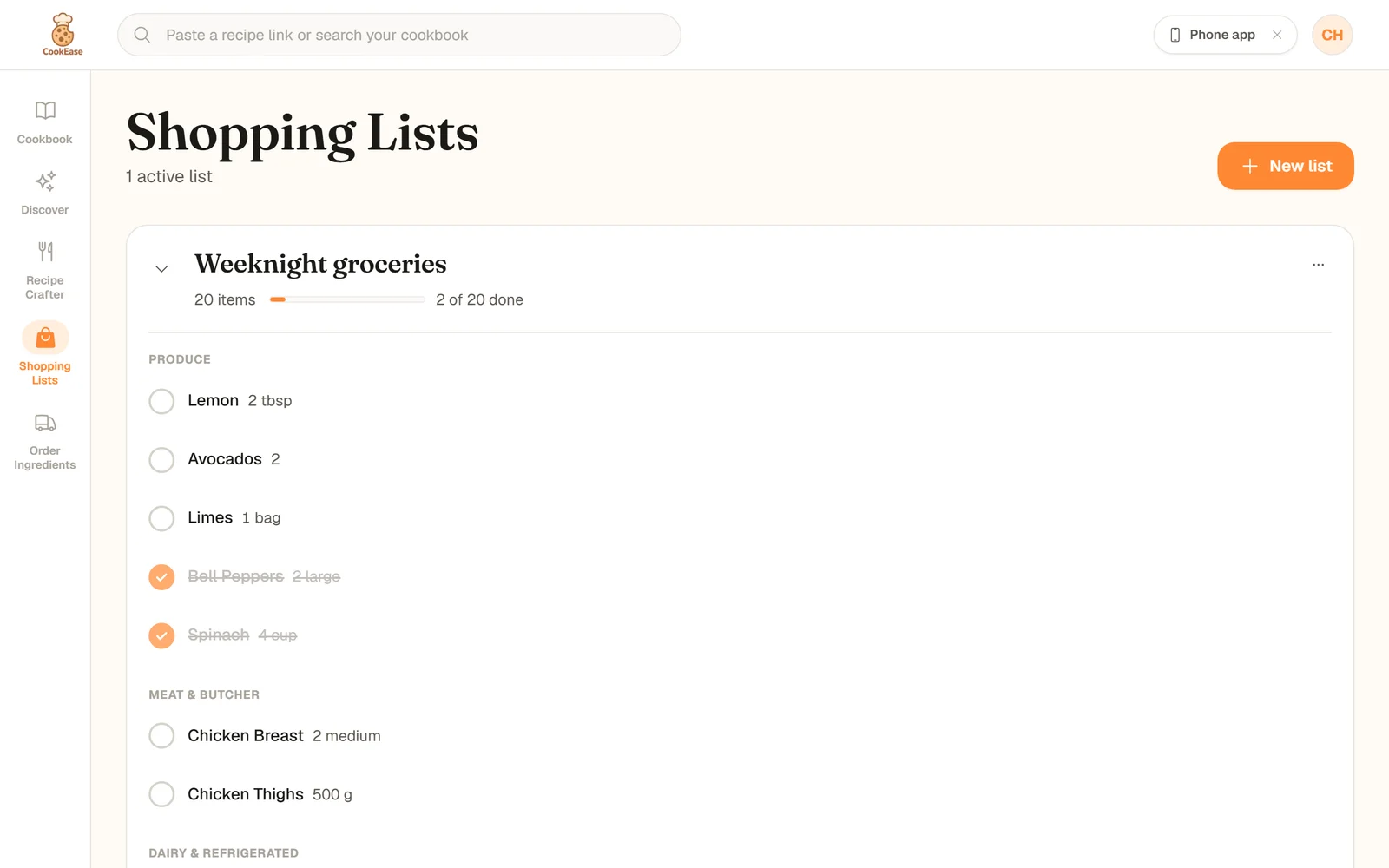
Start a list
- 1
Click New list
Type a name in List name, like "Weeknight groceries", and click Create list. Or choose Start from your recipes to name it after picking recipes. - 2
Choose how to fill it
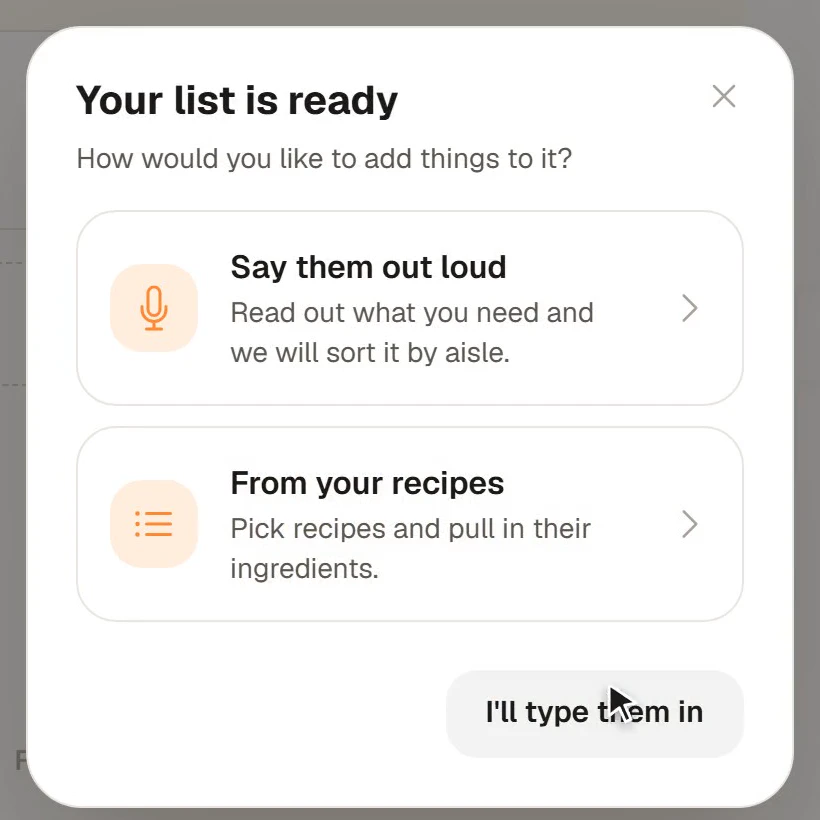
Your list is ready offers Say them out loud, From your recipes, or I'll type them in.
- 1
Tap +
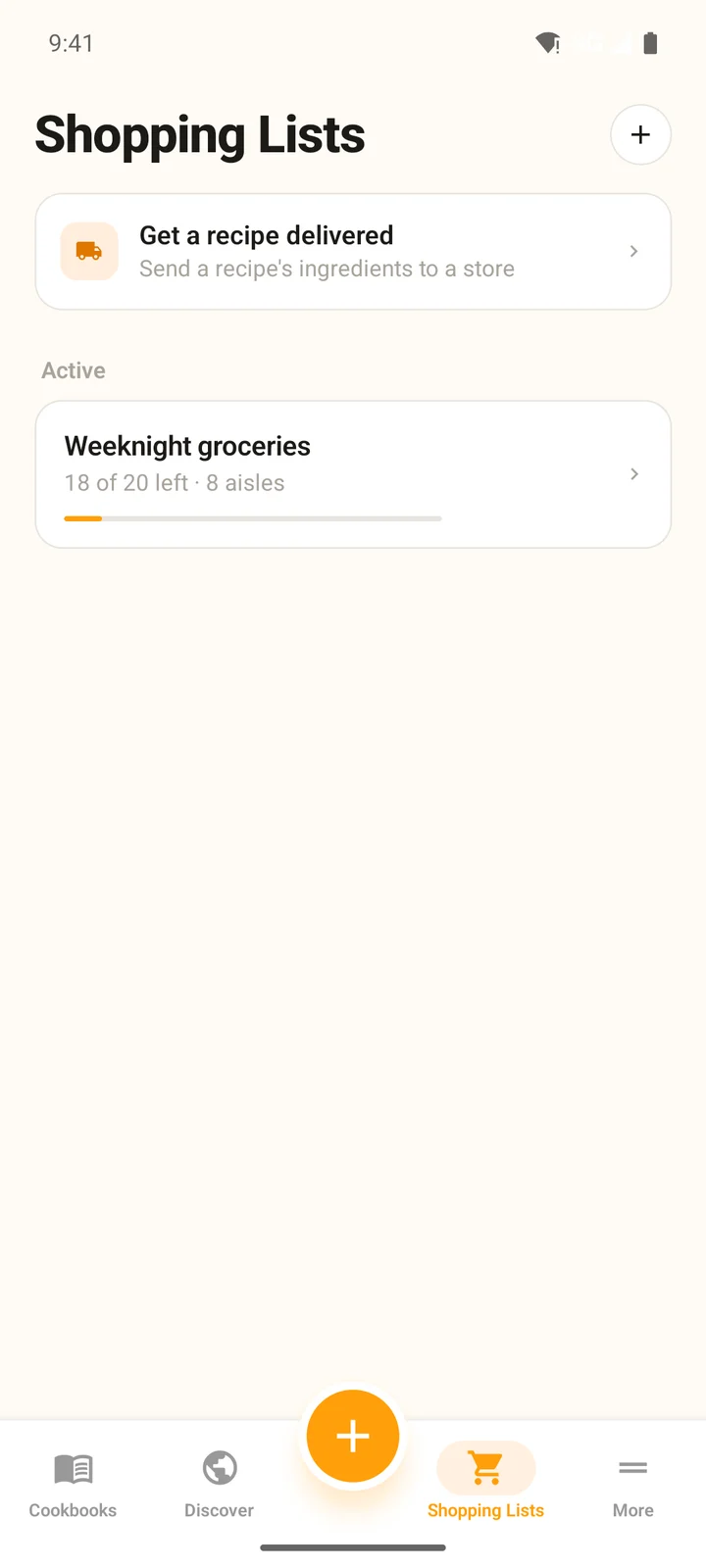
On the Shopping Lists tab, tap + at the top (or Create your first list). - 2
Name it
Type a name and tap Create. The list opens, ready for items. - 3
Or start from a recipe
Most people fill lists from recipes on the phone. See the next section.
Add ingredients from your recipes
This is the fastest way to build a list. You can pull in one recipe or a whole week of them.
- On a list, click From recipes. On an empty Shopping Lists page, From recipes makes a new list.
- Or open a recipe and click Create Shopping List. That recipe is picked for you, at the number of servings you set on the recipe, so cooking for 8 gets you the amounts for 8.
Under What are you cooking?, tap each recipe (or search with Search your recipes), then click Next. What you need shows the combined list, then Create list with N items or Add N items to list saves it.
- 1
Open a recipe
Tap the ... button next to Cooking Assistant, then Create Shopping List. - 2
Untick what you have
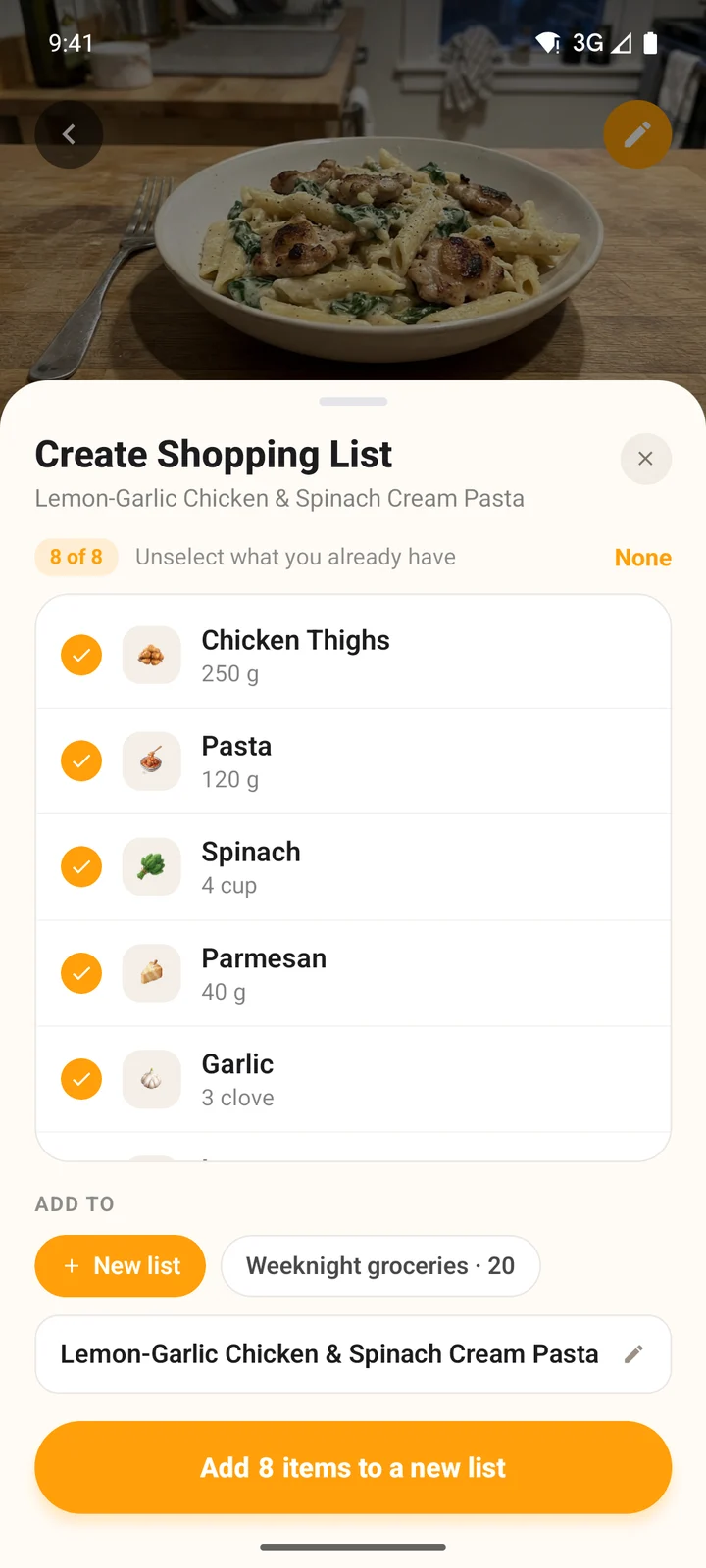
Everything starts ticked. Untick what you already have (Unselect what you already have). - 3
Choose the list
Under Add to, pick New list (you can rename it) or one of your lists, then tap Add N items.
How the list is put together
- Added up: when two recipes use the same thing, you get one line with both amounts combined, marked with the number of recipes.
- Sorted by aisle: Produce, Meat & Butcher, Dairy & Refrigerated, Pasta, Rice, & Grains and so on, always in the same order, so you can work through the store section by section.
- Your choice: untick what you already have, or use Select all and None.
Add items by typing or by voice
For everything that is not in a recipe (paper towels, snacks, coffee), add it straight to the list.
- Type: click Add items, type an item (with a quantity and unit if you like) and press Enter for another row. Click Save items.
- Say it: click Add by voice and say everything in one go, like "two avocados, a bag of limes and some sour cream". Pause when you are done. Check Here's what we heard, remove anything wrong, and click Add N items.
- Type: open the list and type into Add an item at the bottom.
- Say it: tap the microphone in the same field and say what you need. Check Confirm Items, remove anything wrong, and tap Add N Items.
Each item lands in its aisle automatically. Typing is unlimited; adding by voice is included with a generous allowance on free accounts and unlimited with CookEase Pro.
Shop: tick items off and edit them
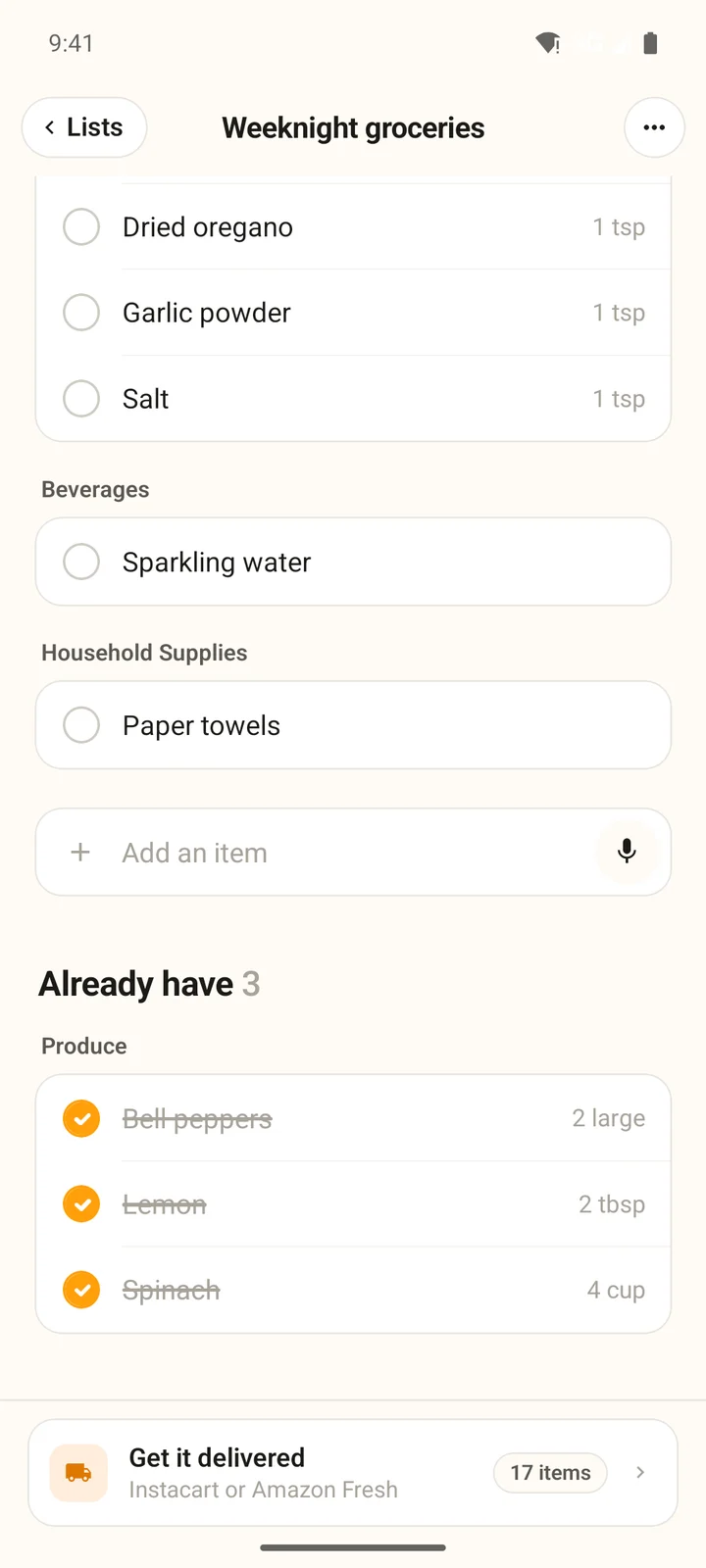
- Tick off: tap an item when it is in your cart. It is crossed out and moves to the end of its aisle (in the app, down to Already have). Tap again to untick.
- Edit: on the website hover over an item and click the pencil, or press and hold it on a touch screen. In the app, press and hold the item. Change the name, quantity or unit and save.
- Delete: the bin next to the pencil on the website, or Remove from list when editing in the app.
The bar under the list name shows how far along you are, like 3 of 20 done.
Rename, finish or delete a list
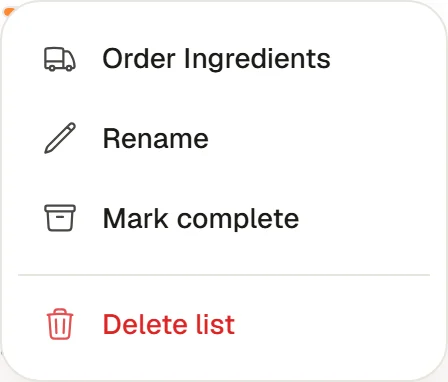
Click ... on the list for Order Ingredients, Rename, Mark complete and Delete list. You can also click the list name to rename it.
Mark complete moves the list to Completed at the bottom of the page. Open Completed and use ..., then Reactivate, to shop from it again.
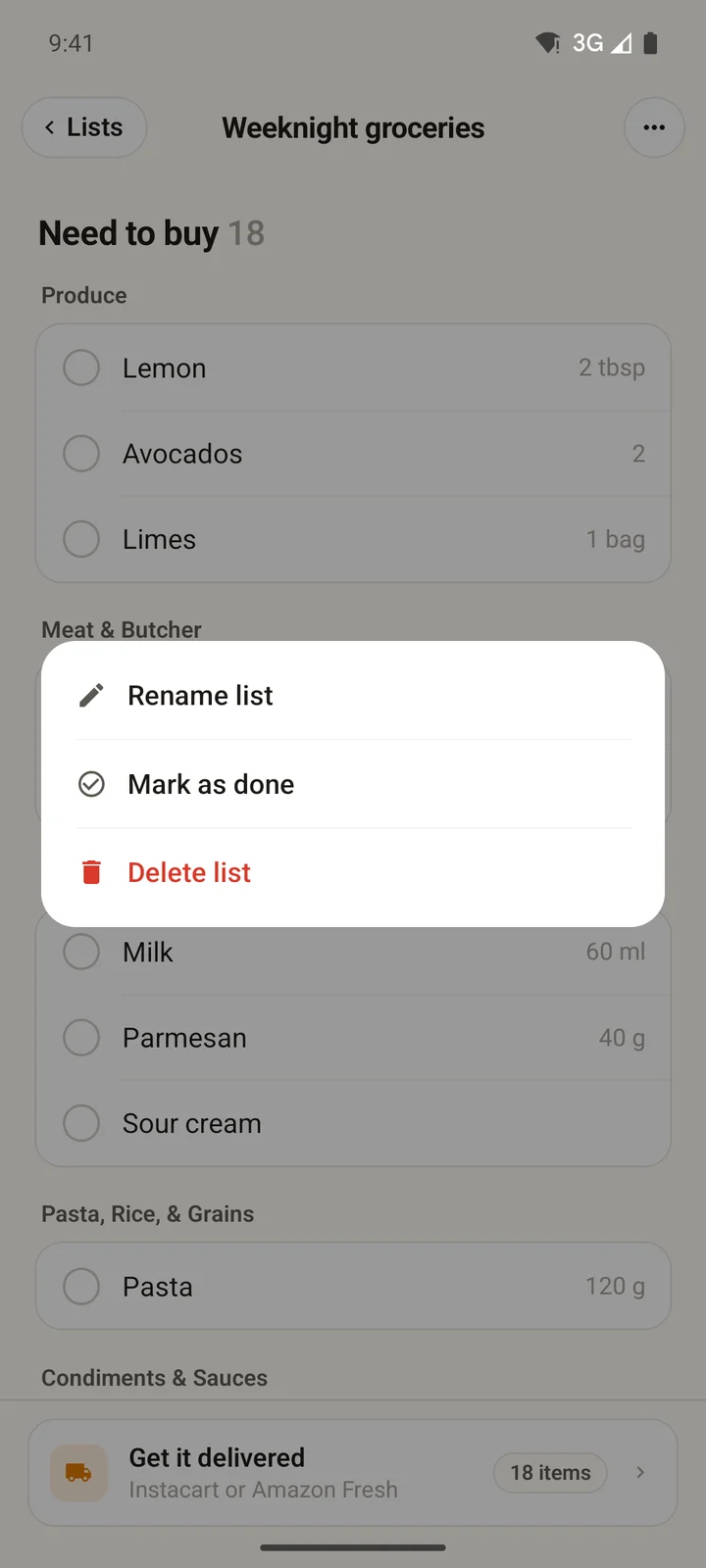
Open the list and tap ... at the top right for Rename list, Mark as done and Delete list.
Finished lists move under Done on the Shopping Lists tab. Tap Shop again to bring one back to Active with every item unticked, ready for next week.
Marking a list complete and bringing it back on the website.