
A saved recipe is yours to change. Fix an amount CookEase misheard, swap an ingredient for the one you always use, split the steps into sections, add your own tags or a better photo. Nothing changes until you save.
Open the editor
Open the recipe and click Edit at the top right of the photo. The edit page opens with everything on one page: Title and Description, Ingredients, Instructions, Recipe Details, Nutritional Information, Rating, Tags, Source URL and Recipe Image.
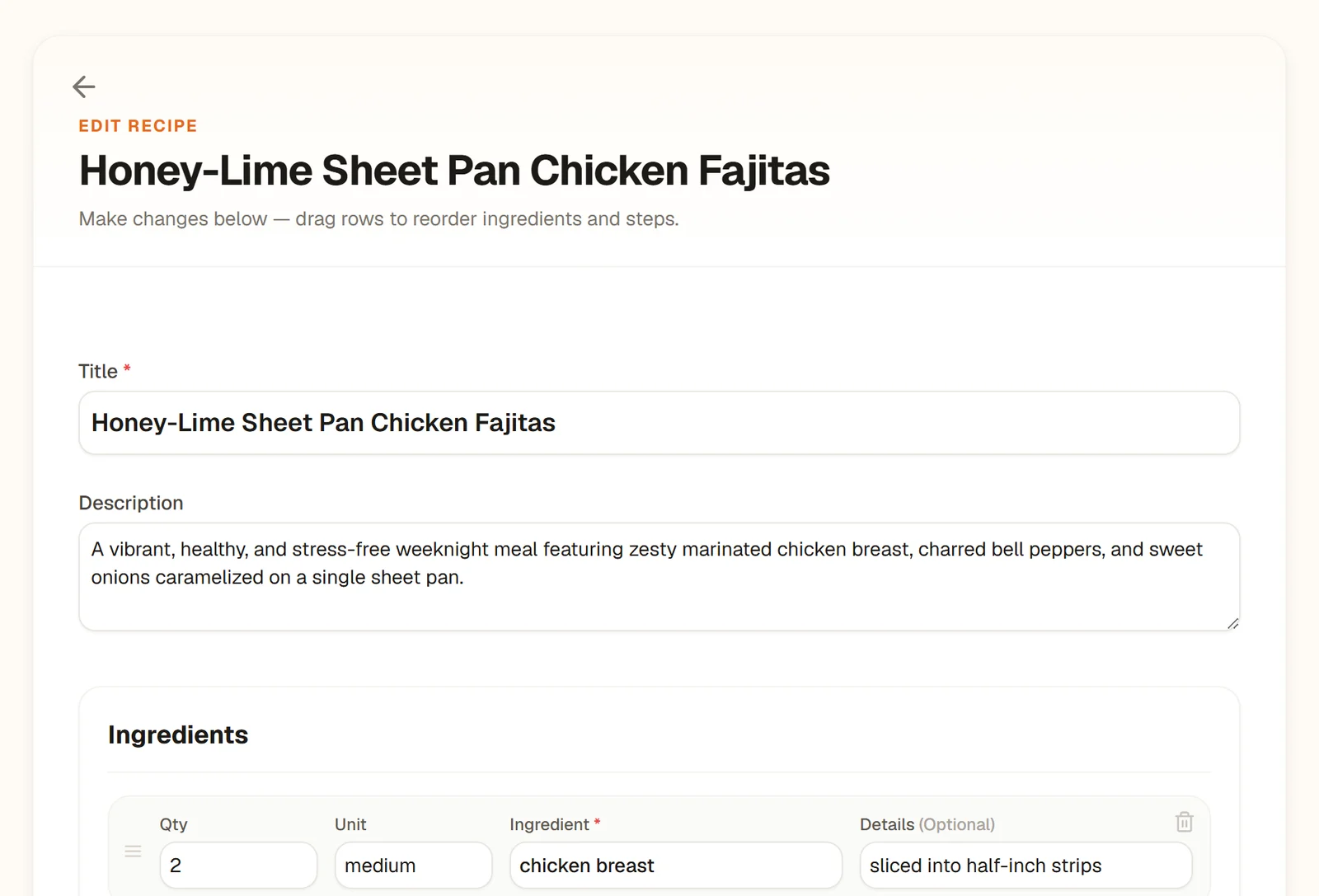
The whole recipe on one page.
Open the recipe and tap the orange pencil at the top right, or press and hold the recipe in the Cookbooks tab and tap Edit Recipe. The Edit Details screen opens. The Info, Ingredients and Steps buttons at the top jump to each part.
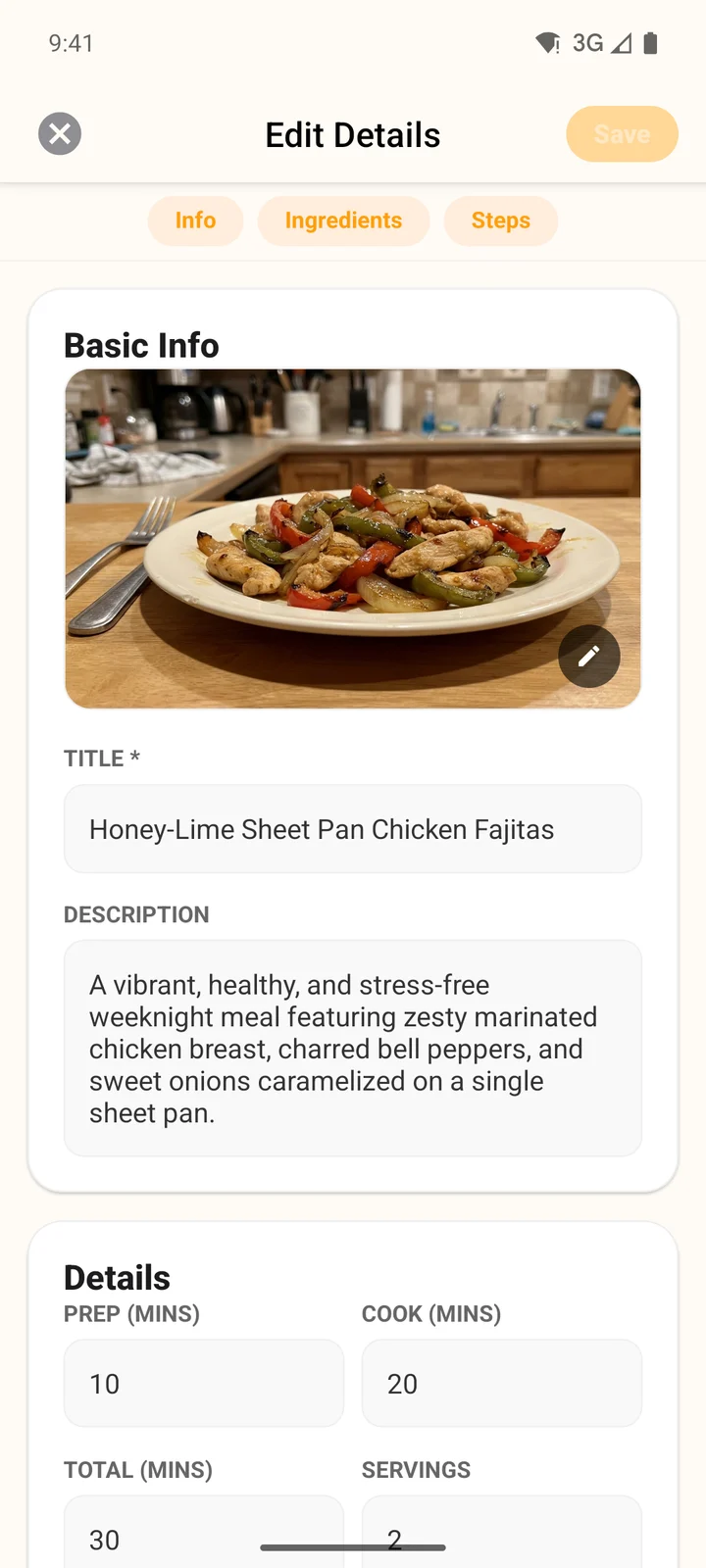
Edit Details, with jump buttons at the top.
Change the ingredients
Each ingredient is a row with its amount, unit, name and an optional note such as "finely chopped".
- Website: the fields are Qty, Unit, Ingredient and Details (Optional). Add a row with Add Ingredient and remove one with the trash can at its top right.
- App: the fields are Qty, Unit, Name * and a notes line. While you type an amount or unit, quick fraction and unit buttons appear above the keyboard. Add a row with Add Ingredient; swipe a row to the left to delete it.
- Reorder: drag a row by its handle (the three short lines on the left) to where it belongs, on the website and in the app.
Drag a row by its handle; the others make room as you move.
Change the steps
Each step is its own box. Type to change it, use Add Step to add one at the end, and drag a step by its handle to move it. Empty steps are dropped when you save.
Sections, like "For the sauce"
In the app, steps can be grouped into sections. Each section has a title box (for example "For the sauce"), its own Add Step, arrows to move the whole section up or down and a trash can to remove it. Add Section at the bottom starts a new one. The recipe then shows each section under its own heading.
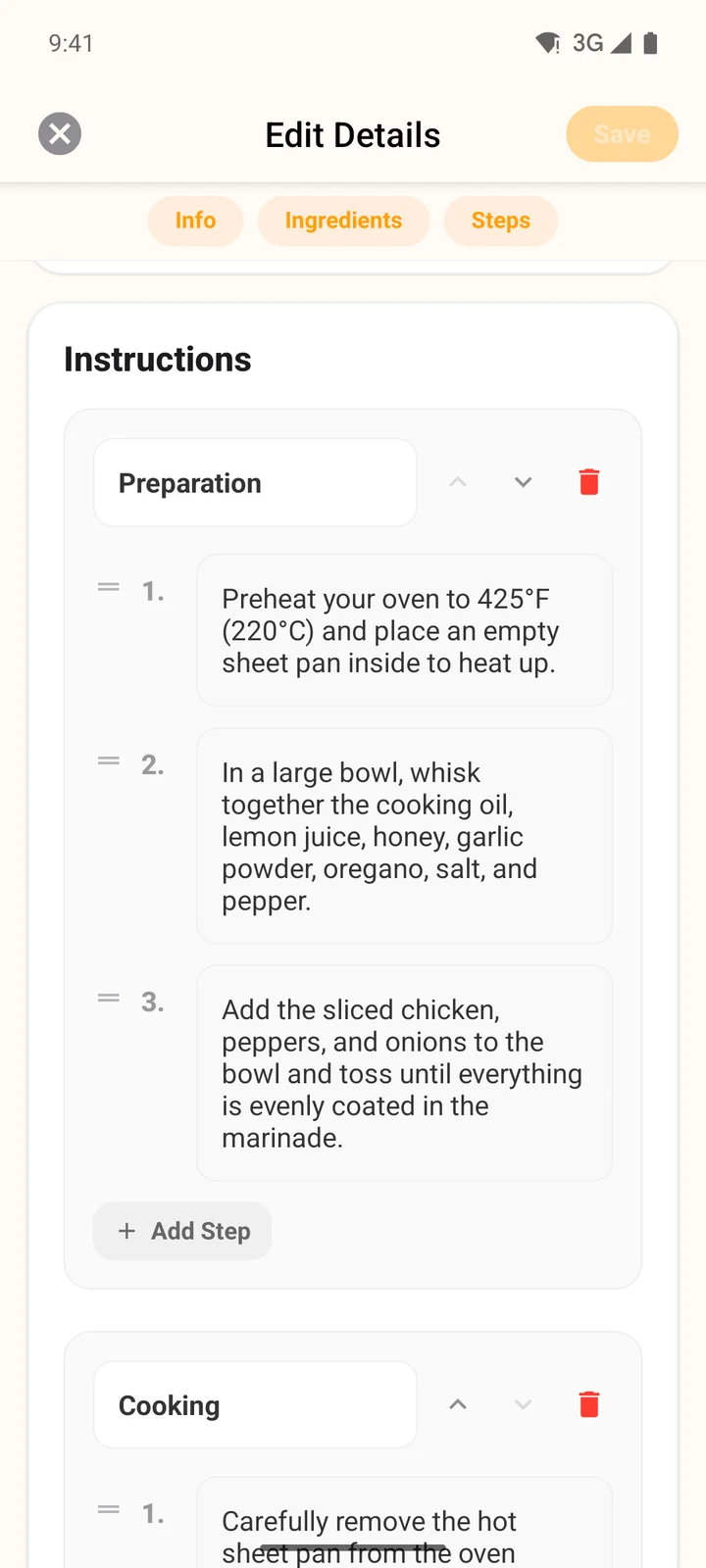
Sections in the app, each with its own steps.
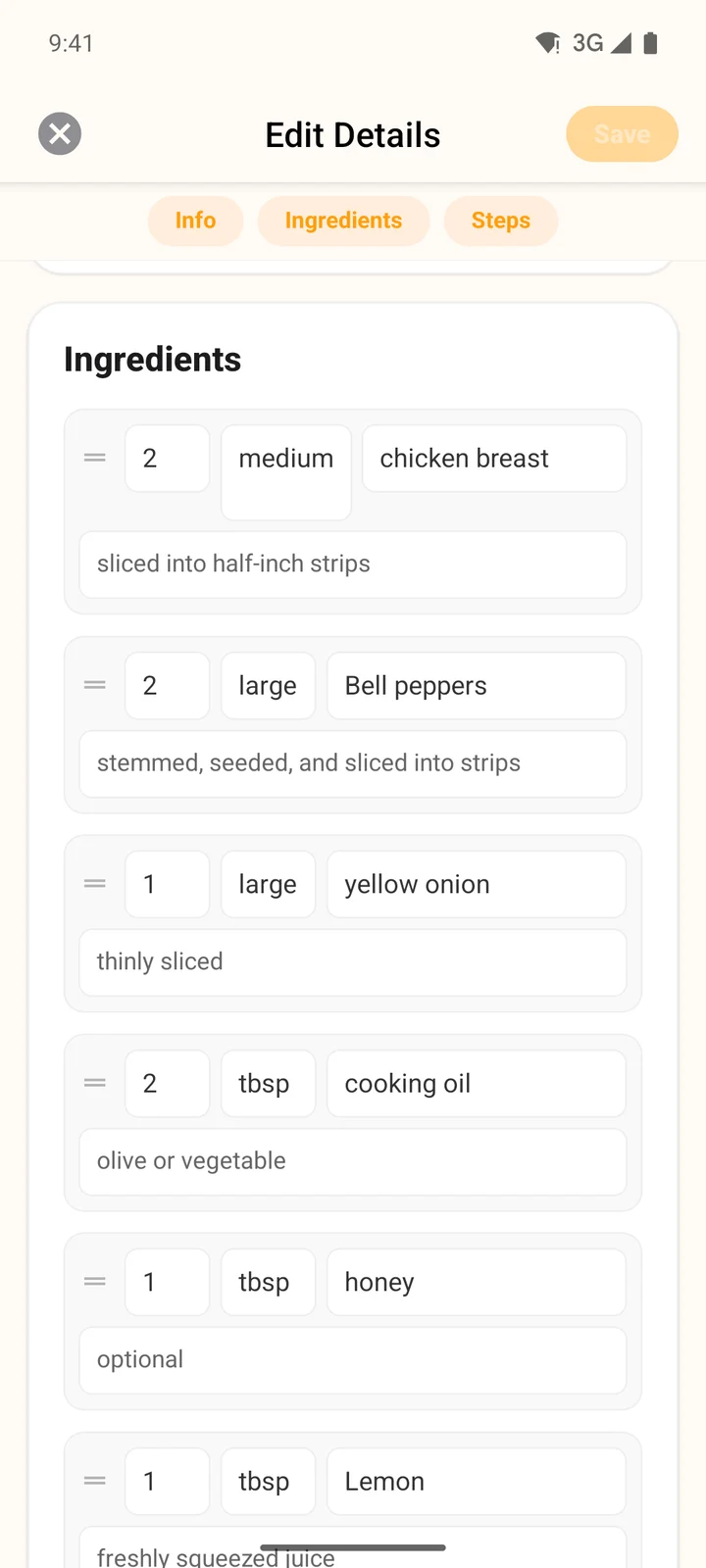
Ingredients in the app: amount, unit, name and notes.
On the website, a section starts with a heading row: a bold box for its name, with no number. Every step below it belongs to that section until the next heading. Use Add Section to add a heading at the end, then drag it by its handle to where the section should start. Drag steps across a heading to move them into another section, and use the trash can on a heading to merge its steps into the section above.
Times, servings, serving size and nutrition
Under Recipe Details (Details in the app) you can set the prep, cook and total time in minutes, the number of Servings, the Serving Size (what one portion is, such as "1 bowl (~400g)") and the Difficulty (Easy, Medium or Hard).
Servings, serving size and nutrition are linked. Change the number of servings and CookEase keeps the recipe the same size, so the serving size and the nutrition per serving shrink or grow to match, with a note saying what changed. Change the weight in the serving size and the number of servings follows. The full story is in nutrition and serving sizes.
Nutritional Information (Per Serving) (Nutrition (Per Serving) in the app) holds calories, protein, carbs and fat. Type your own numbers here, for example from a package label, and they are kept.
Want to cook a bigger or smaller batch just this once? You do not need to edit anything: use the servings control on the recipe instead. See scale a recipe up or down.
Rating, tags, source and photo
- Rating: give the recipe 1 to 5 stars for your own reference.
- Tags: type a tag and press Enter (or a comma on the website) to add it; tap the x on a tag to remove it. Tags appear on recipe cards and help website searches find the recipe.
- Source URL: the link the recipe came from. It powers the View Original link on the recipe.
- Photo: on the website, use Change Image (or Upload Image if there is none) under Recipe Image, or the trash can on the photo to remove it. In the app, tap the photo at the top of Edit Details and choose Choose New Photo or Remove Photo. A new photo replaces the old one when you save.
The chef's notes and tips that came with a recipe cannot be edited.
Save or throw away your changes
- Website: Save Changes at the bottom lights up once you change something; it saves everything and shows Recipe updated. Cancel leaves without saving and asks first if you changed something.
- App: Save at the top right lights up once you change something. The x at the top left closes the editor and asks Discard changes? if there are unsaved edits.

Delete a recipe
- 1
On the website
Open the recipe, click Edit, then Delete Recipe at the bottom left of the edit page, and Delete recipe again to confirm. - 2
In the app, from the recipe
Tap the pencil, scroll to the bottom of Edit Details, tap Delete this recipe, then Delete. - 3
In the app, from your cookbook
Press and hold the recipe in the Cookbooks tab, tap Delete Recipe, then Delete.
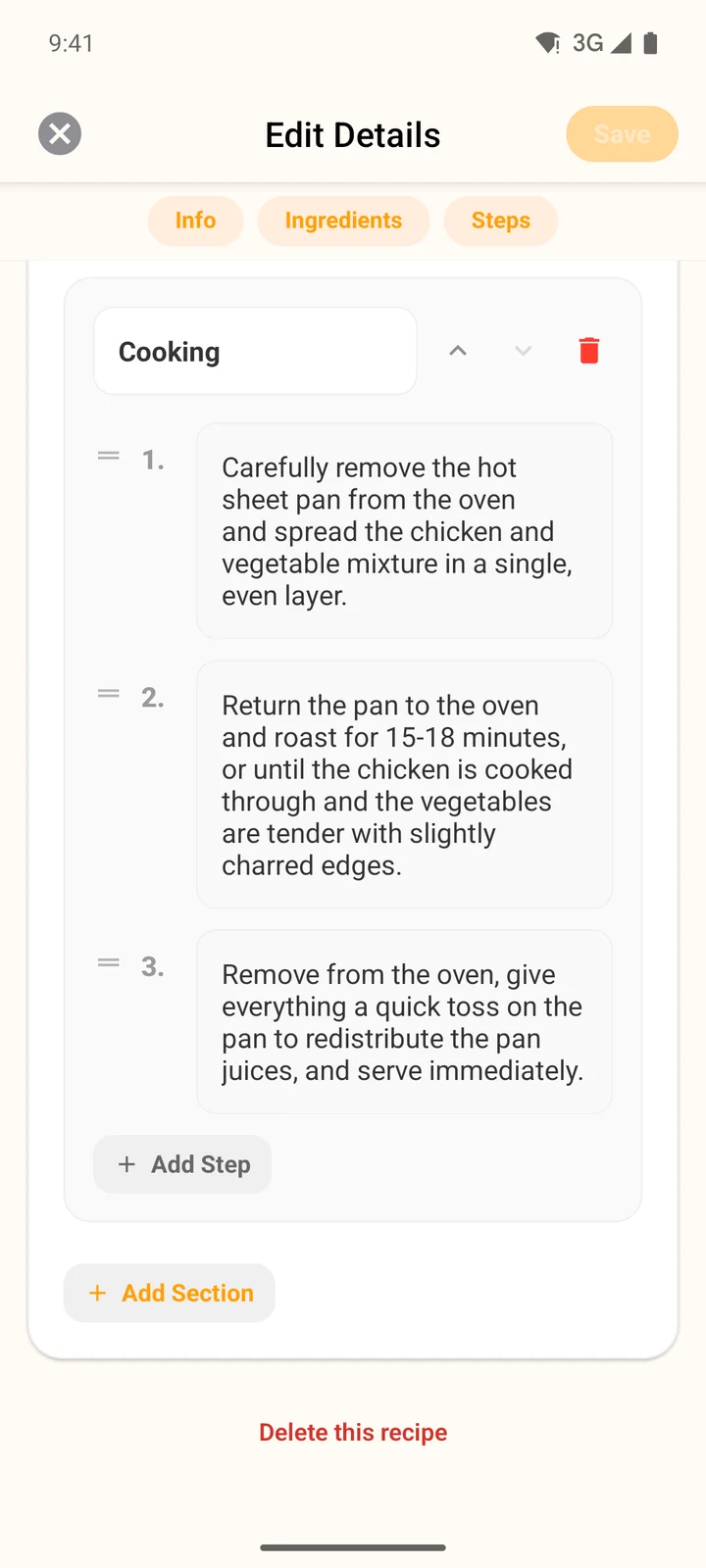
Delete this recipe sits at the very bottom of Edit Details.