
Managing Your CookEase Account
Everything about your CookEase identity lives under Account. This article covers signing in, keeping your details current, and what happens if you decide to leave.
Three ways to sign in
CookEase supports signing in with:
- An email address and password
- Log In with Google
- Log In with Apple (on iPhone this is Apple's own Continue with Apple button; on Android it opens Apple's sign-in page)
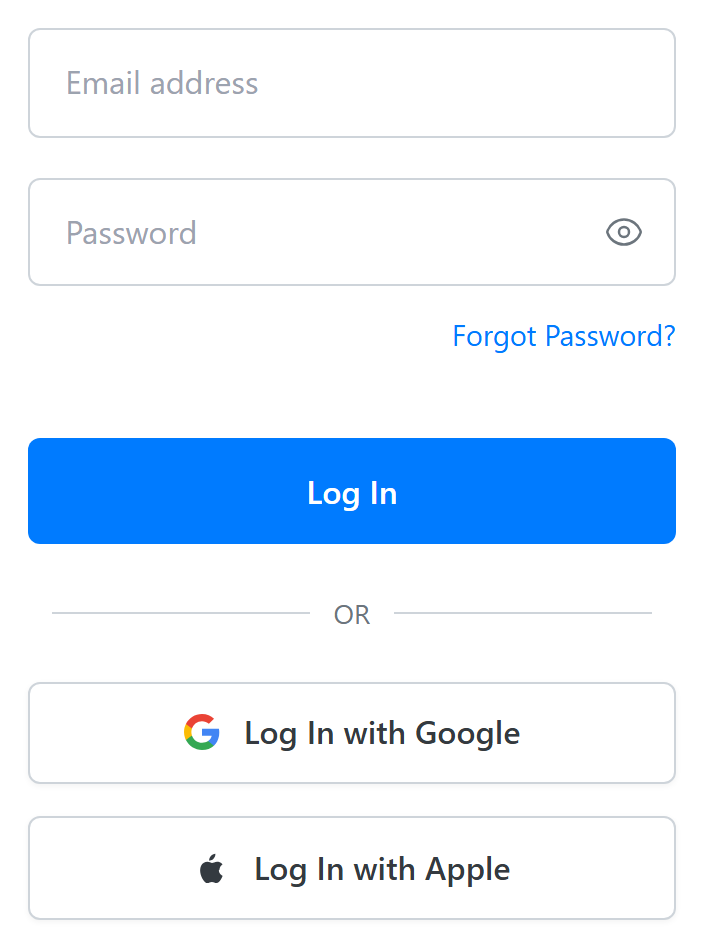
The important thing is to keep using the same one. Each method is treated as its own separate sign-in, so signing up with Google and later trying to create a password account with the same address will not land you in your existing recipes.
"It is asking for a password and I do not have one"
If you originally used the Google or Apple button to sign up, you never created a CookEase password. There is nothing to type into the password field, and requesting a password reset will not help, because there is no password on the account to reset.
The fix is to use the same button you used the first time. If you cannot remember which, try Google and Apple before assuming the account is missing.
Resetting a password
- On the website login screen (cookeaseapp.com/login), choose Forgot Password?. Password resets happen on the website; a password set there works in the iPhone and Android apps too.
- Enter the email address on your account.
- Open the reset link we email you and set a new password.
- Sign in with the new password.
If no email arrives, check your spam folder and confirm you are using the address you signed up with.
Updating your profile
Open Account, then Profile, to edit your display name. This is the name shown beside any comments you leave on public recipes, so it is worth setting to something you are happy being seen.
Deleting your account
Deletion is permanent. Your account and the recipes, cookbooks, and shopping lists attached to it are removed, and support cannot restore them afterwards.
Two things to do first:
- Save anything you want to keep. Copy out any recipes that matter to you, because they are going with the account.
- Cancel an App Store or Google Play subscription separately. If you subscribed on iPhone or Android, deleting your CookEase account does not cancel that subscription. Cancel it in the iOS Settings app (iPhone) or the Google Play Store app (Android) first, or you'll keep being billed.
If you only want to stop paying, you do not need to delete your account at all. Canceling Pro leaves everything intact and simply returns you to the free plan.