
Cooking for six from a recipe that serves two? Or just for yourself from one that feeds a crowd? Tell CookEase how many people you are feeding and it does the math on every amount, so you never have to work out what a third of three quarters of a cup is.
Tap + to step up a serving, or type the number you want. Scaled amounts turn orange.
Change the number of servings
Open any recipe and look next to the Ingredients heading for Serves with a number between a minus and a +.
- Step it: tap + or minus to go up or down one serving.
- Type it: tap the number, type a new one and press Enter (or tap away). It updates as you type, so going from 4 to 20 takes one go, not sixteen taps.
- Range: 1 to 100 servings. Typing outside that gently shakes the box and says At least 1 serving or Up to 100 servings, then puts your last number back.
- Back to normal: a badge such as 3x appears next to Ingredients while the recipe is scaled. Tap its x to return to the original amounts.
The same control in the app.
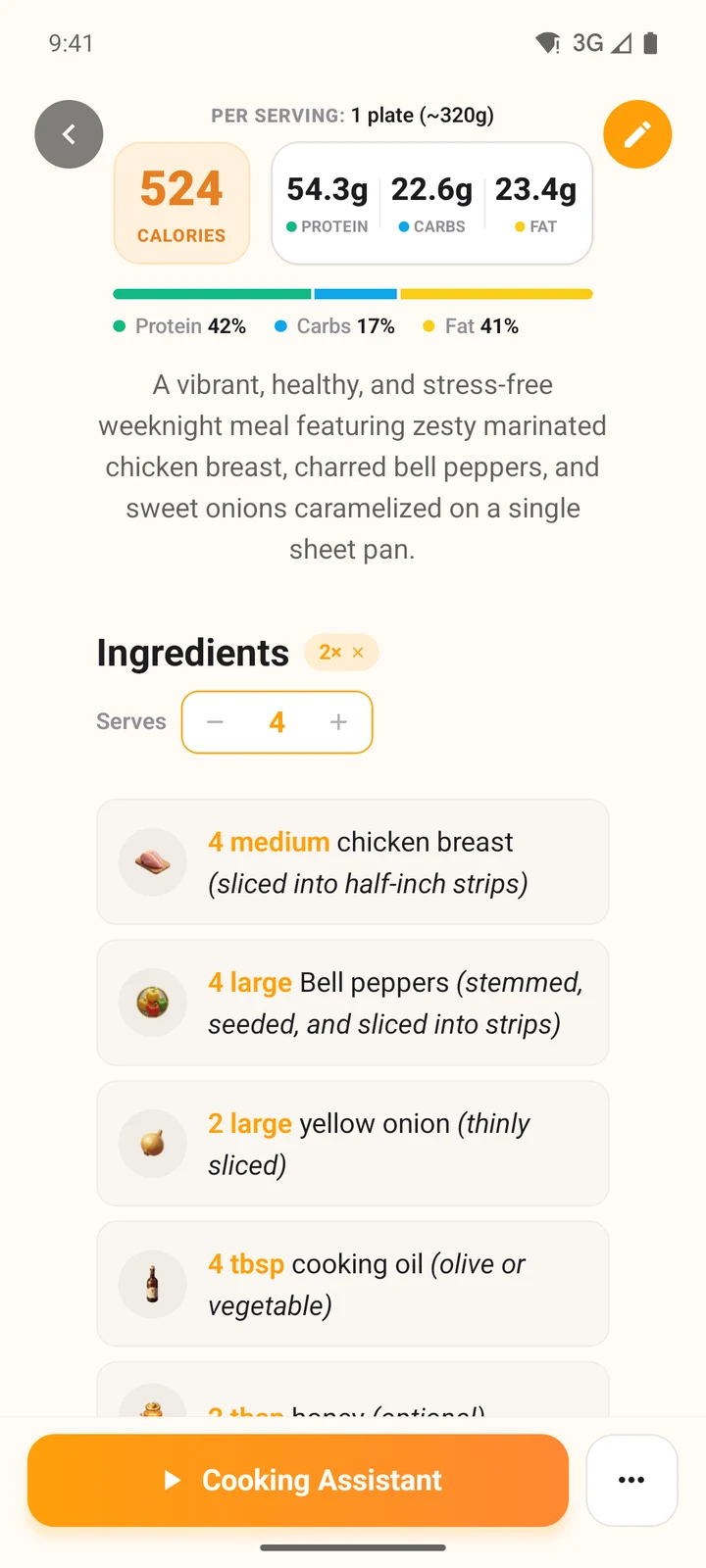
Doubled: the badge shows 2x and amounts turn orange.
What changes and what does not
Ingredient amounts
- When you scale
- Scaled, shown in orange, in friendly fractions like 1 ½ tbsp
Amounts written in the steps
- When you scale
- Scaled too, such as "add 2 cups of stock"
Servings shown at the top
- When you scale
- Updated to match
Times, temperatures and pan sizes
- When you scale
- Not changed
Nutrition per serving
- When you scale
- Not changed: a serving is still a serving
Your saved recipe
- When you scale
- Not changed
| When you scale | |
|---|---|
| Ingredient amounts | Scaled, shown in orange, in friendly fractions like 1 ½ tbsp |
| Amounts written in the steps | Scaled too, such as "add 2 cups of stock" |
| Servings shown at the top | Updated to match |
| Times, temperatures and pan sizes | Not changed |
| Nutrition per serving | Not changed: a serving is still a serving |
| Your saved recipe | Not changed |
While a recipe is scaled, a note says so (under the ingredients on the website, with the steps in the app): Times, temperatures and pan sizes are not scaled, because a bigger batch may need longer or a larger pan. On the website, hover over an orange amount to see the original.
Recipes that do not say how many they serve
Some recipes never state a yield. Rather than guess a number of servings, the control reads Scale and multiplies the recipe instead. The minus and + buttons walk through handy sizes (0.25x, 0.5x, 0.75x, 1x, 1.5x, 2x, 2.5x, 3x, 4x, 5x, 6x, 8x, 10x and 12x), and you can type any amount from 0.25 to 12. Add a number of servings in Edit and the control switches to Serves.
Where your scale goes with you
- Cooking Assistant: start Cooking Assistant from a scaled recipe and cook mode opens at the same scale, with scaled amounts in each step. Ask it how much of something you need and it answers for your batch. On the website you can also change the servings from the ingredients panel inside cook mode. See cook step by step.
- Shopping lists and orders, in the app: Create Shopping List and Order Ingredients from the recipe's ... menu use the amounts on screen.
- Shopping lists on the website: a list made with Create Shopping List uses the recipe's original amounts. If you scaled, change the quantities on the list. See shopping lists.
Scaling is just for this cook. Close the recipe and come back, and it shows the original amounts again. To change the recipe permanently, change Servings in Edit; the serving size and nutrition per serving update to match, as explained in nutrition and serving sizes.