
Recipe e-books, meal plans from a nutritionist, a family cookbook someone typed up, a recipe page you printed to PDF: upload the file on the CookEase website and every recipe inside lands in your cookbook. Here a PDF with two stir-fry recipes becomes two recipes.
A two-recipe PDF on the website. The +1 more recipe badge shows a second recipe was found.
How to save a PDF
- 1
Open Upload File on the website
On your Cookbook at cookeaseapp.com, click Save a recipe, then the Upload File tab. - 2
Choose the PDF
Click Select Image or PDF and pick the file. The card shows Reading PDF content... while CookEase goes through it. - 3
File the recipes
When Recipes Saved! appears, use the arrows to flip through what was found (the badge shows 1 of 2 and so on), tick a cookbook under Add All to Cookbook (Optional) to file them all at once, then click Done.
One PDF, many recipes
CookEase saves every recipe it finds in the file as its own recipe, each with its own ingredients, steps, servings and nutrition. However many recipes come out, the upload counts as one save.
- For a long cookbook, upload the chapter or pages you want rather than the whole book. Shorter files are quicker and easier to file.
- Scanned pages work too: CookEase reads the text in a scan the way it reads a photo of a cookbook page.
- Recipes from a PDF have no photo at first. Add one with Edit on the recipe if you like.
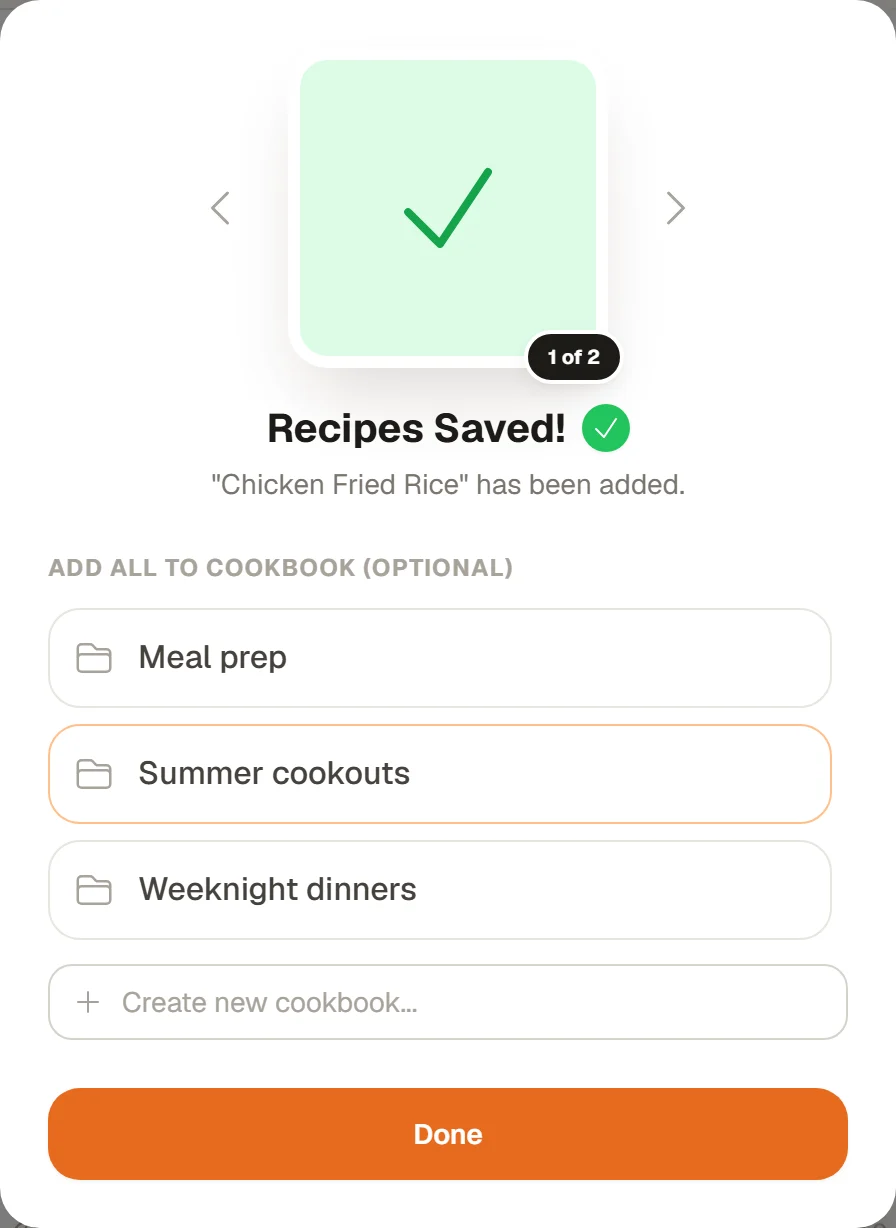
Recipes Saved! Flip through them and file them all at once.
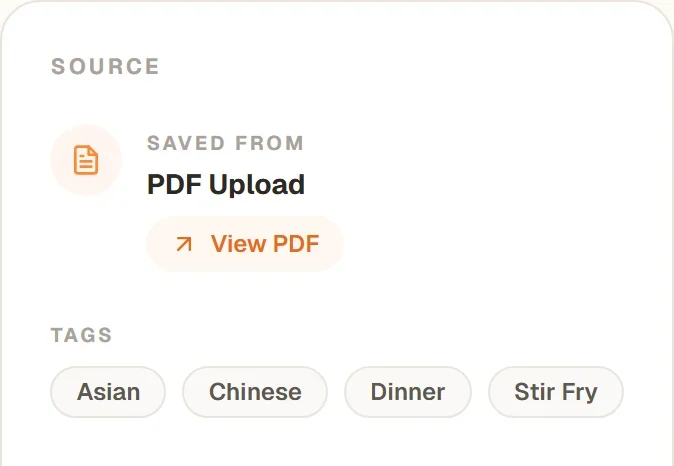
View PDF opens the file the recipe came from.
Finding the original file
Every recipe saved from a PDF says PDF Upload under SAVED FROM, with a View PDF button that opens the file in a new tab. Handy when a recipe refers to a photo or a note elsewhere in the document.