
Most of us save far more recipes than we cook. Meal Plan turns the ones you already saved into meals: a dinner each night, breakfast, lunch and snacks if you want them, a reminder when it is time to start each one, and one grocery list for the whole week.
Pick your nights, and the week fills itself from your own cookbook.
Where to find it
Choose Meal Plan in the menu on the left. On a phone-sized screen it is in the bar at the bottom.
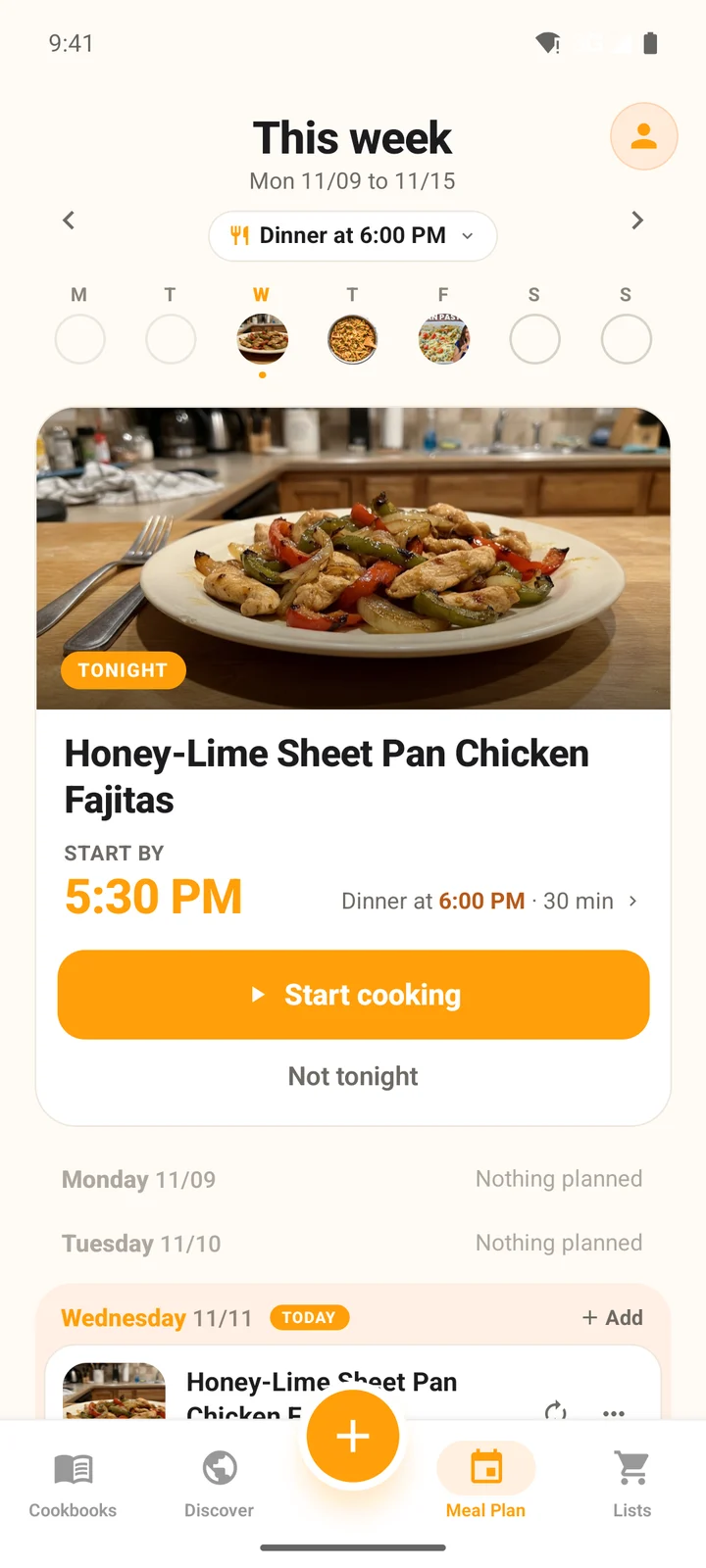
Tap Meal Plan in the tab bar, between the orange + button and Lists.
The page opens on the current week, Monday to Sunday. Use the arrows beside the week's name to look at next week (up to eight weeks ahead) or at weeks gone by.
The week at a glance
Under the week's name is a row of seven small markers, one per day. An empty ring is a free night, a photo or a filled dot is a planned dinner, and a stamped one is a dinner you cooked. Today is highlighted. Tap a marker to jump to that day.
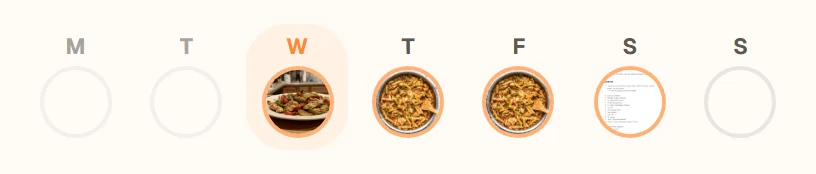
A day with nothing on it is a slim row that says Free, with a + button. A day that has already passed with nothing on it says Nothing planned.
Add meals yourself (always free)
- 1
Tap Add on a day
On a day that says Free, tap the + button on its row. - 2
Pick the meal
Choose Breakfast, Lunch, Snack or Dinner at the top. It starts on Dinner, or on Lunch when the day already has a dinner. - 3
Pick recipes from your cookbook
Tap the recipes you want (search with Search your cookbook), then tap the button at the bottom, such as Add to dinner or Add to lunch. - 4
Or add a note
Tap a note like Leftovers, Eating out or Something simple to mark the meal without a recipe.
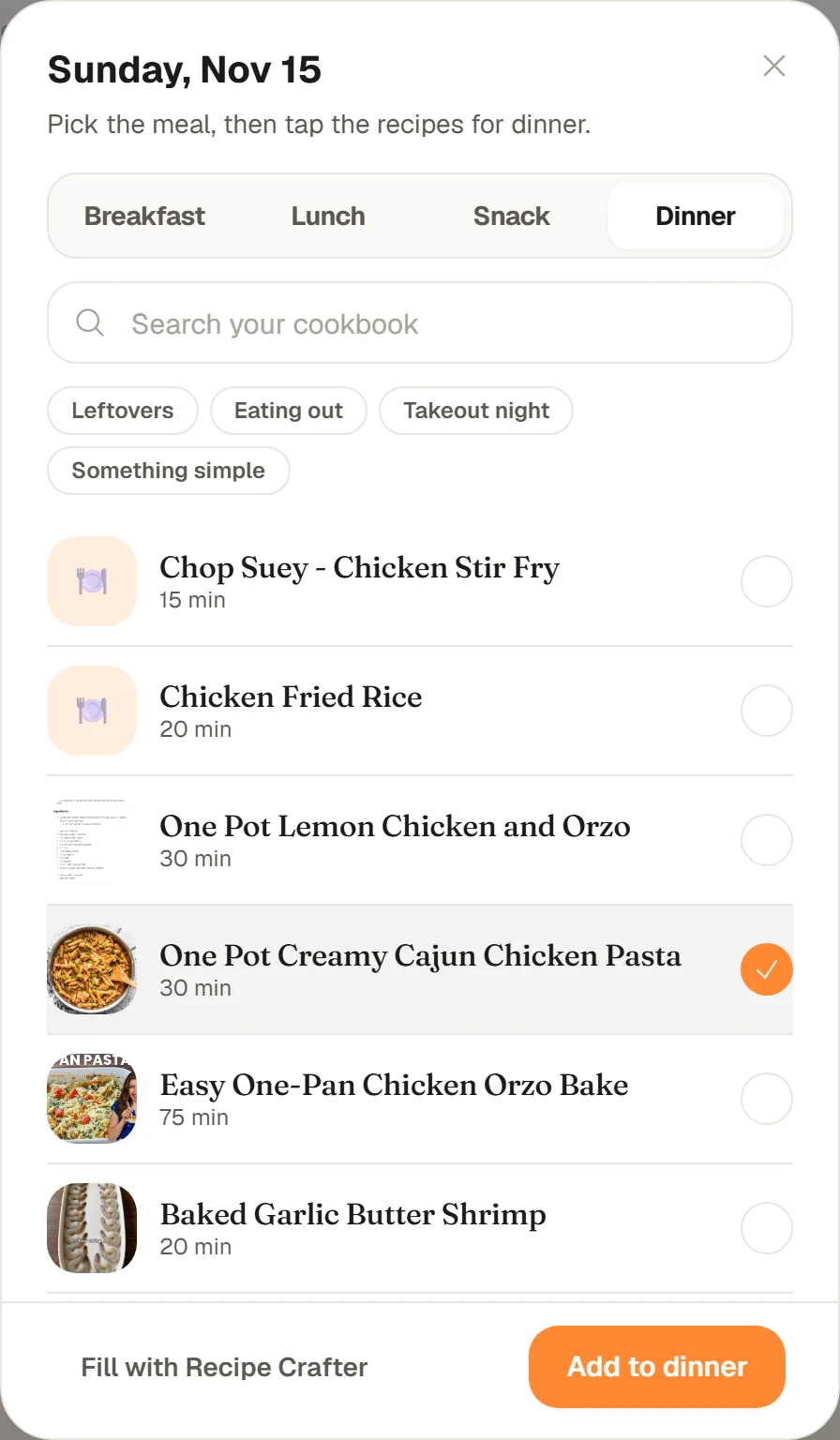
Nothing in your cookbook feels right for dinner? Tap Fill with Recipe Crafter and the Recipe Crafter makes something new for that night, then puts it on the day for you (this is offered for dinner).
You can also add a recipe from the recipe itself: on the website click Add to meal plan on the recipe page, and in the app tap the ... button, then Add to meal plan. Pick the meal first: CookEase guesses from the recipe (pancakes or oats start on Breakfast, energy balls or dips on Snack, everything else on Dinner), and you can change it. Then choose Tonight, Tomorrow or another day. CookEase then tells you when the meal is and when it will remind you, for example Breakfast at 8:00 AM. We'll remind you at 7:45 AM to start cooking.
The first time you add a breakfast, a lunch or a snack, CookEase asks when you usually have it, so the reminder fits your day. See meal times and reminders.
Breakfast, lunch and snacks
Every day holds Breakfast, Lunch, Snack and Dinner, shown in that order. Dinner stays the main card; once a day has other meals, each card shows its meal name on top. A night with other meals but no dinner shows No dinner yet. Add one, or leave it.
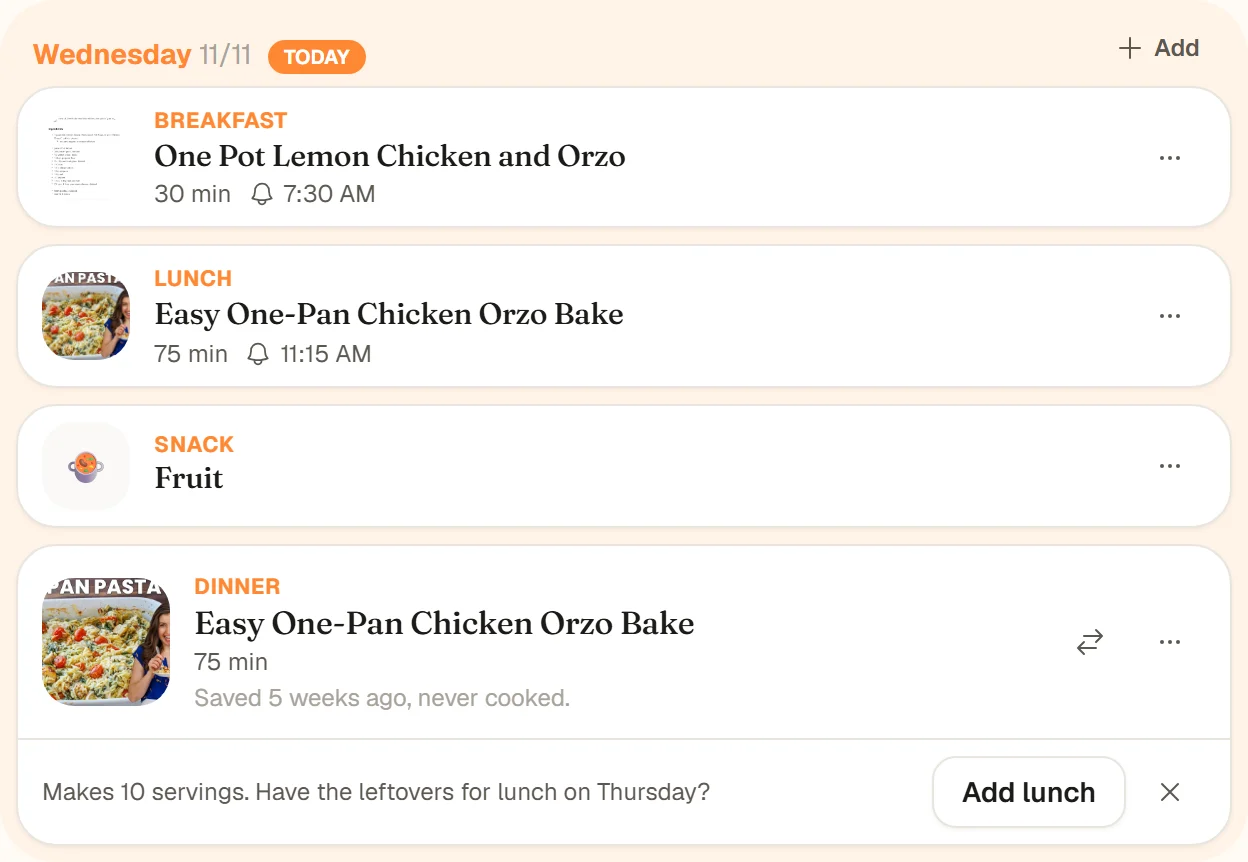
- To move a meal to another slot, tap its ... button and choose under Make it (in the app: Make it another meal, or on a dinner Make it breakfast, lunch or a snack).
- Every meal with a recipe gets a reminder at its own meal time. The swap button and the Tonight card at the top are for dinners.
- One list for the week includes every meal, and the shared week shows each meal with its name.
- Plan my week plans dinners only. A night with just a lunch still counts as free, and the lunch stays.
Leftovers for lunch
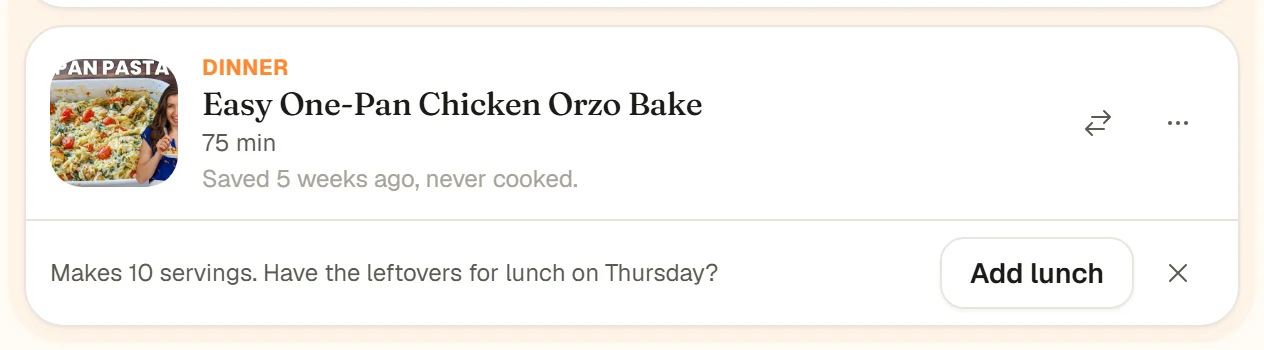
When a dinner makes more servings than the people at your table and the next day has no lunch yet, its card offers the rest as lunch: Makes 6 servings. Have the leftovers for lunch on Wednesday?On the website click Add lunch; in the app tap the line. The lunch appears on the next day marked Leftovers, with no reminder, since there is nothing to cook. Tap the X beside the offer to hide it for that dinner.
Let CookEase plan it: Plan my week
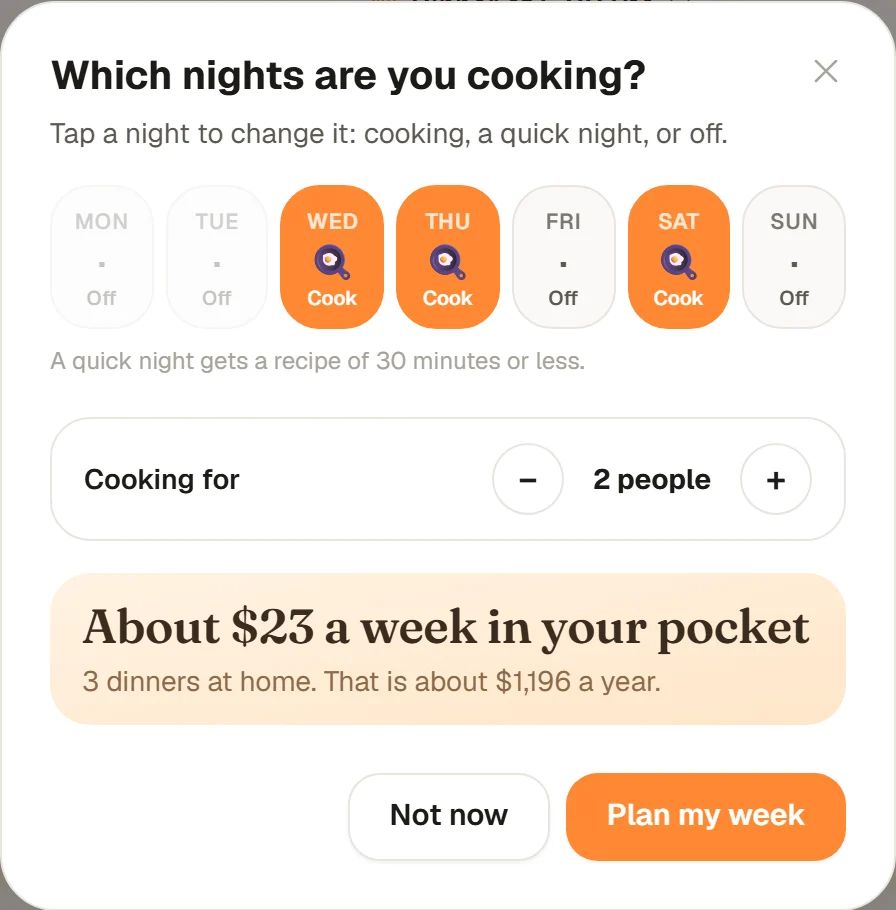
Tap Plan my week on an empty week, or Plan the free nights on a week that already has some dinners. In Which nights are you cooking?, tap each night to switch it between:
- Cook: a dinner from your cookbook.
- Quick: a recipe that takes 30 minutes or less.
- Off: nothing planned that night.
Set Cooking for to the number of people at the table, then tap Plan my week. The line at the bottom shows about how much a week of dinners at home keeps in your pocket compared with takeout.
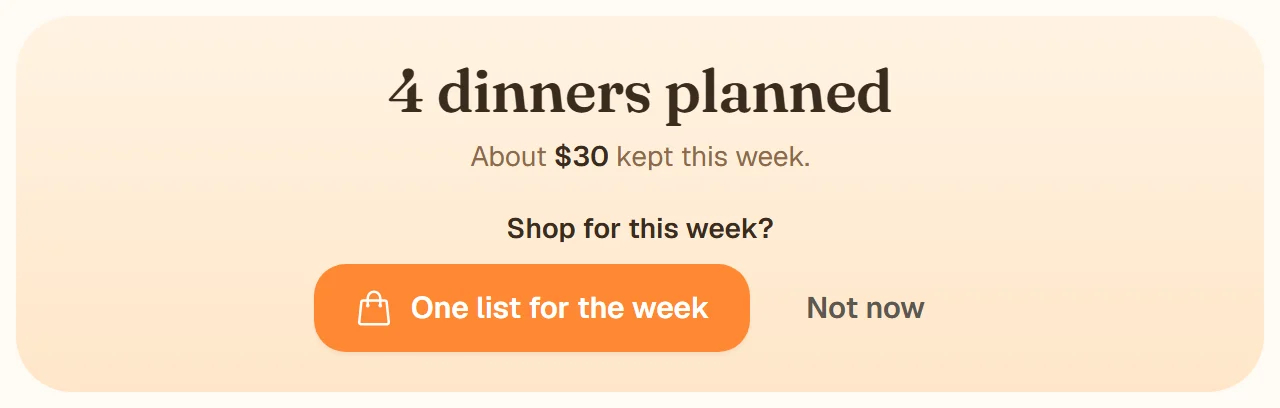
The dinners then land on the week one night at a time, each with its reason. In the app you can tap anywhere to show the whole week at once. It ends on a card that says how many dinners are planned and about how much the week keeps in your pocket, for example 5 dinners planned and About $38 kept this week.The same card asks Shop for this week?: tap One list for the week to make the grocery list right away, or Not now. It asks once for each week you plan.
How the dinners are picked
- It plans dinners, and only on nights without one. Dinners already on the week stay where they are, and so do any breakfasts, lunches or snacks.
- Recipes you saved but have not cooked yet come first, and the same dish never lands on two nights.
- Your taste profile counts: anything with your allergies or dislikes is left out.
- A big recipe can feed the next night too. That night shows Leftovers.
- Every dinner has a short line saying why it was picked, like Saved 3 weeks ago, never cooked. or Shares rice and avocado with the week.
- If your cookbook cannot fill every night, CookEase adds a popular recipe from Discover, leaning toward the kinds of food you like, marked From Discover. Tap Save on it to keep it in your cookbook (it counts as a save on the free plan).
Change a night
- Swap: tap the two-arrow button on a dinner for a different recipe.
- Move: in the app, hold a card until it lifts, then drag it onto another day. On a computer, drag the card onto another day with the mouse. Or tap the ... button, then Move to another day.
- Remove: ..., then Take it off the week.
- Not tonight: on today's dinner, Not tonight pushes it to the next free night.
- Cook it: Start cooking opens the Cooking Assistant. Once you finish, the night gets a COOKED stamp.
Tonight, and your reminders
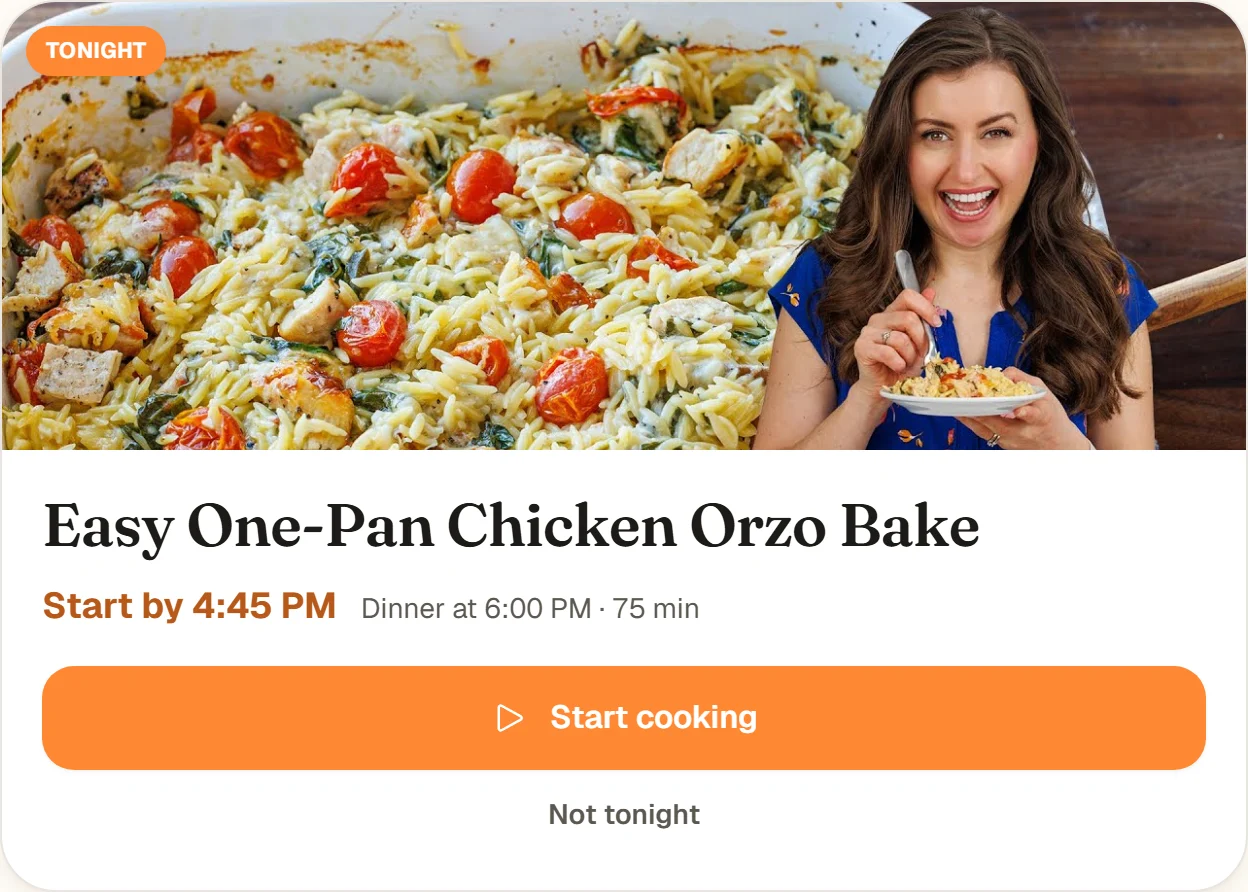
Today's dinner gets a large card at the top of the week: its photo, its name, Start by 5:15 PM (the time to begin so dinner is ready on time), the dinner time, a Start cooking button and a quieter Not tonight. Tap the dinner time on the card to change it for tonight.
Every planned meal with a recipe gets a reminder when it is time to start cooking: the meal's time minus the recipe's time. The usual times are breakfast 8:00 AM, lunch 12:30 PM, snack 3:30 PM and dinner 6:00 PM. Change them, or switch a meal's reminders off, with the Dinner at 6:00 PM button at the top of the week. See meal times and reminders.
One grocery list for the week
Tap One list for the week under the week, or on the card that appears right after Plan my week. CookEase makes one shopping list from every meal on the week, adds up amounts that appear more than once (two recipes with an onion each becomes 2 onions), and sorts it by aisle. Open it from Shopping Lists, or send it to a store with Order Ingredients.
Share the week
Tap Share the week to send a link to the people you cook for. Anyone with the link sees the week's meals, each labeled with its meal, with photos and times, without signing in. It shows your first name and nothing else about your account.
Tell the week what to do
At the bottom of the week there is a dark box with a microphone. Tap the microphone and say it, or type it and press Enter:
- "Move Tuesday to Thursday"
- "Swap Monday"
- "Skip Friday"
- "Add tacos on Saturday" (finds a recipe in your cookbook with that name)
- "Add oatmeal for breakfast on Monday", "add soup on Friday for lunch" or "add hummus as a snack on Saturday"
- "Skip lunch on Friday"
- "Dinner at 7", "breakfast at 7:30", "lunch at noon" or "Friday lunch at 12:30"
- "Make a grocery list" or "plan my week"
A command that names no meal, like "skip Friday", acts on that night's dinner.
The Sunday recap
On Sunday evening, the app sends one notification about the week: how many dinners you cooked and about how much that kept in your pocket, with a nudge to plan the next one. Open a past week to see the same recap, with a stamp for every dinner cooked. Your cooked dinners also bake cookies in My Cookie Jar.