Your hands are covered in dough, the pan is getting hot, and the phone with the recipe on it has just gone dark. Cook mode is the fix: a way of showing a recipe that stays on, shows you one step at a time, and lets you move on without wiping your hands first.
This guide explains what cook mode actually does, how it differs between recipe websites and recipe apps, and how to cook a whole recipe hands-free in CookEase, where cook mode is called the Cooking Assistant: steps on screen, servings you can change mid-recipe, and answers to your questions read out loud.
What is cook mode?
Cook mode is a view of a recipe made for the kitchen rather than for reading at a desk. The name covers two different things, and it helps to know which one you are looking at:
Keeps the screen on
- Website switch
- Recipe app
One step at a time, in large type
- Website switch
- Recipe app
Ingredients next to the step
- Website switch
- Recipe app
Change the servings while you cook
- Website switch
- Recipe app
- In CookEase
Next step by voice
- Website switch
- Recipe app
- In CookEase
Answers questions out loud
- Website switch
- Recipe app
- In CookEase
| Website switch | Recipe app | |
|---|---|---|
| Keeps the screen on | ||
| One step at a time, in large type | ||
| Ingredients next to the step | ||
| Change the servings while you cook | In CookEase | |
| Next step by voice | In CookEase | |
| Answers questions out loud | In CookEase |
The switch on a recipe website uses a browser feature called the Screen Wake Lock, which lets a page ask the phone not to dim or lock while it is open. According to MDN, it has worked across the latest browsers since March 2025, and the browser lets go of it on its own when you switch tabs or the battery runs low. That is a real help, but the recipe still scrolls by on a long page between ads, and you still touch the screen for every step.
Two things called "cooking mode" are not this at all: the program buttons on an oven, an air fryer or a multicooker, and the dark "cooking" theme some apps offer. If you came here for one of those, your appliance manual is the place to look.
How to turn on cook mode in CookEase
Every recipe you save in CookEase, from a TikTok, an Instagram Reel, a website, a photo or pasted text, opens in cook mode with one tap. It works the same on the website, iPhone and Android.
- 1
Open the recipe
Open it from your cookbook and tap Cooking Assistant. On the website it is the orange button under the title, or Cook on the recipe's card; in the app it is in the bar at the bottom. - 2
Follow one step at a time
Tap Next and Previous, swipe left and right on a phone, tap the progress bar to jump, or press → and ← on a computer. - 3
Keep the ingredients close
On a computer they sit beside the step; on a phone, tap Ingredients. Tick them off as they go in. - 4
Finish
On the last step, tap Finish cooking, or Finish at the top whenever you are done.
Opening cook mode on the website and moving through the steps.
While the Cooking Assistant is open, CookEase keeps the screen awake, in the iPhone and Android apps and in browsers that support it, so there is no setting to change before you start and none to undo afterward.
What is on the cook mode screen
The view is dark on purpose, so it reads easily from across the counter and does not light up the kitchen at night. Here is everything on it, on a computer:
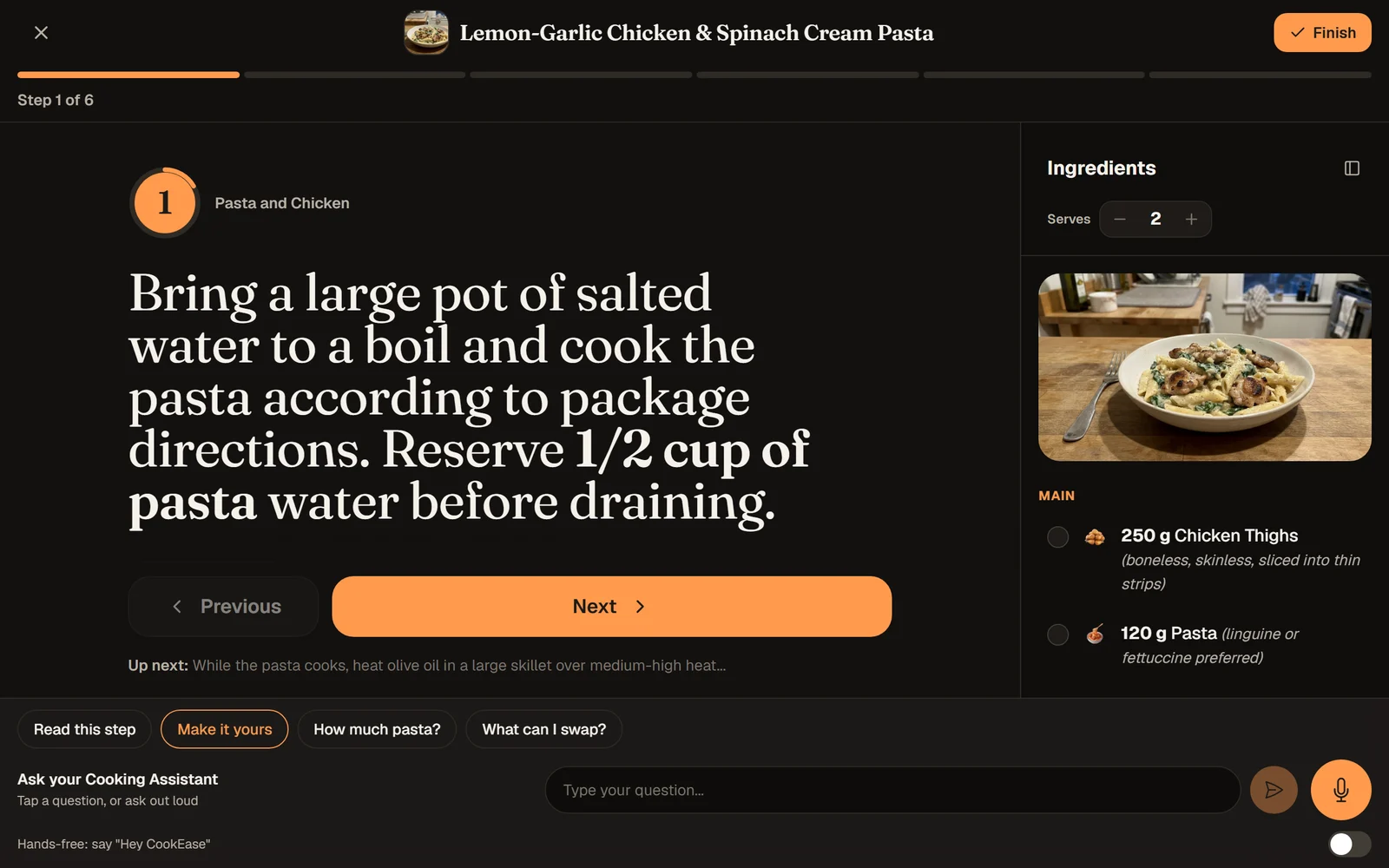
- 1Progress bar One segment per step. Tap any segment to jump to it.
- 2The step you are on Large type you can read from a few feet away.
- 3Previous and Next Under the step, with a preview of what comes next.
- 4Ingredients and servings Change the servings and tick off ingredients as they go in.
- 5Assistant bar Ask by voice or by typing. Answers are read out loud.
On a phone the step fills the screen, and on iPhone and Android the ingredients that step uses appear right under it, at your amounts, so you rarely need to open the full list.
Cook hands-free with your voice
Cook mode keeps the recipe in view; your voice is what keeps your hands off the phone. You can talk to the Cooking Assistant in two ways:
- One question at a time: tap the microphone and ask, or tap a suggested question like Read this step. Good for the odd question.
- Hands-free: turn on the Hands-free switch, then say "Hey CookEase" followed by what you need, whenever you need it, for the whole recipe. This is the hands-free way to cook.
What you can say
There is no list of commands to learn: the assistant understands everyday wording and knows the recipe, your step and your servings.
- "Next step" or "what's next?"
- "Go back"
- "Go to step 4" (the screen jumps there)
- "Read step 2" (it reads the step out loud and shows it)
- "Stop" to cut an answer short
It listens only while cook mode is open and you have started it, and with hands-free on it acts only on what you say after the wake phrase. You can change the phrase in the assistant settings, and the voice help article covers microphone permissions and which browsers offer hands-free.
Ask questions while you cook
A recipe can't answer back; the Cooking Assistant can. Because it knows the recipe you are cooking, the step you are on and your servings, you can ask it what you would ask a friend standing at the stove:
- "Can I use chicken breast instead of thighs?"
- "How much pasta do I need?" (it answers at your current servings)
- "How do I know the chicken is done?"
- "I added too much salt. What do I do?"
- "What can I do while the pasta boils?"
The answer shows in the assistant bar and is read out loud, so you can keep stirring. You can type instead of talking when the kitchen is noisy or someone is asleep. Questions are free and unlimited on every plan; the Cooking Assistant help article has the details for each device.
Change the servings without leaving the step
Halfway through, someone says they are staying for dinner. In cook mode, tap + next to Serves and every amount updates, including the amounts written inside the steps, while your saved recipe stays as it was. Times, temperatures and pan sizes do not change, so a bigger batch may need a bigger pan or a few more minutes.
For a recipe that isn't in CookEase, our free recipe converter doubles, halves or resizes any ingredient list and rounds each amount to spoons and cups you own.
The assistant follows the new servings too: ask "how much butter?" after doubling and the answer is the doubled amount.
How to turn on cook mode on an iPhone or Android phone
Neither iPhone nor Android has a cook mode built in. You have three ways to get one, from least to most help:
- Change the lock setting. On iPhone, Settings, then Display & Brightness, then Auto-Lock, then Never; on Android, Settings, then Display, then Screen timeout. It works for any recipe, but you have to remember to set it back. Our guide on keeping your phone screen on while cooking covers every phone, and what to do when Never is missing.
- Use the Cook Mode switch on the recipe's website. Turn it on before you start; it keeps the screen on while that page is open.
- Save the recipe to an app with a cooking view. In CookEase, share the recipe link or video to the app, then tap Cooking Assistant. You get the screen kept on plus steps, servings and voice.
A screen that stays on gets you to the next step. A cook mode you can talk to gets you there without putting the spoon down.
Tips for cooking hands-free
- Prop the phone at eye level, out of splash range, on a stand or against a canister, so you can read a step without leaning over the pan.
- Start listening before your hands get messy. Turn on the Hands-free switch when you open the recipe; after that, the wake phrase does the rest.
- Read the whole recipe once first. Cook mode shows one step at a time, which is great at the stove and bad for spotting the overnight marinade in step 1. Skim the full recipe before you begin.
- Keep the phone in a zip-top bag when you knead or bread things: the touchscreen still works through thin plastic if you do need to tap.
- Ask for the step, not the scroll. "Read step 5" is faster than finding your place again with a floury knuckle.
Cook any recipe hands-free.
Save a recipe from any video, website or photo, then tap Cooking Assistant: one step at a time, the screen stays on, and you can ask out loud.