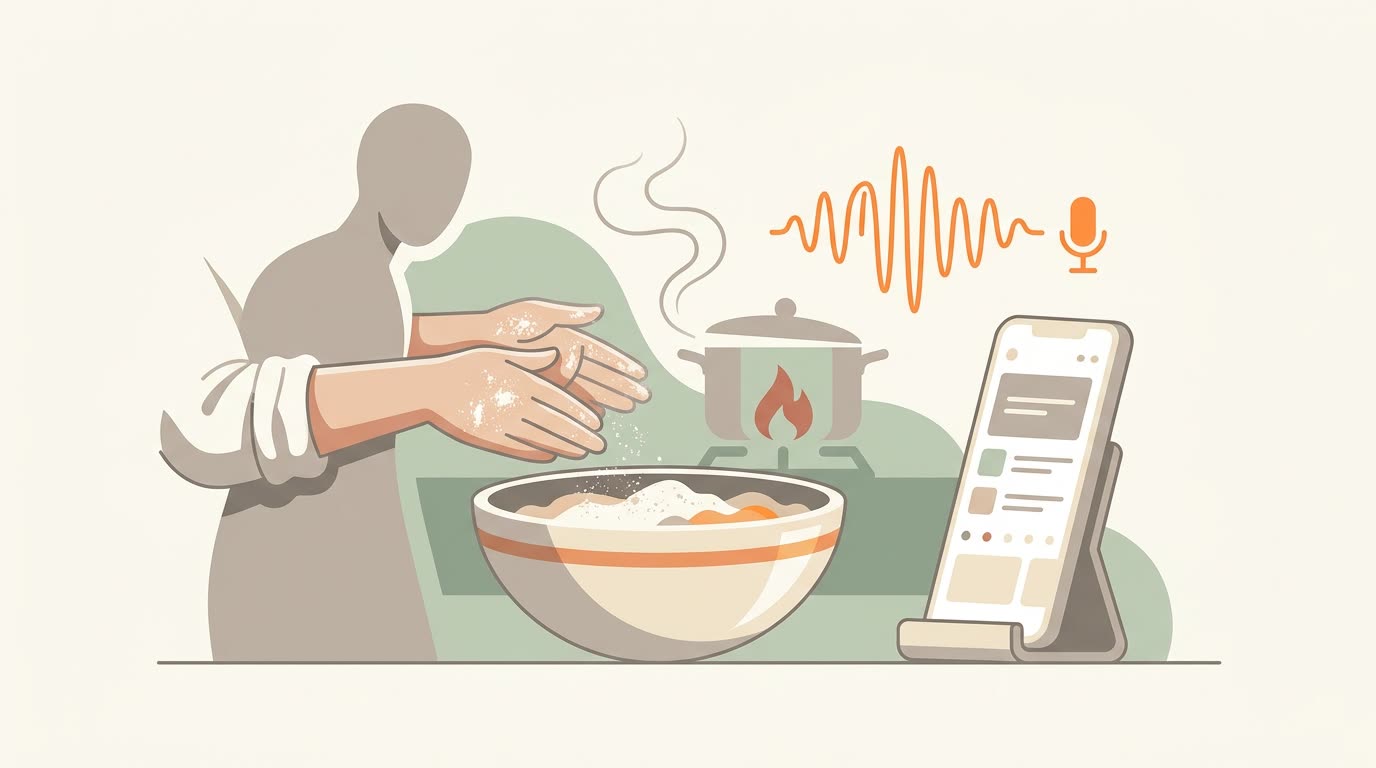
Your hands are covered in raw chicken, the next step is on your phone, and the screen just went black. You can wash your hands, unlock with a knuckle, or try to tap in your passcode with your nose. Or you can stop it from happening at all.
Phones lock themselves after 30 seconds to a few minutes to save battery and keep your data safe. That is the right default for your pocket and exactly the wrong one for your counter. Below are the exact settings for each device, the reasons the option is sometimes missing, and a better way that does not touch your settings at all.
Step 3 of 7
Fold in the flour until just combined.
Bake 25 minutes at 350°F.
Step 3 of 7
Fold in the flour until just combined.
Bake 25 minutes at 350°F.
Keep the screen on: steps for your device
Pick your device. Each path below is the built-in setting, no extra app needed.
- 1
Open Settings
The gray gear icon on your Home Screen. - 2
Tap Display & Brightness
It sits in the second group of options. - 3
Tap Auto-Lock
You will see options from 30 seconds to 5 minutes, plus Never. - 4
Choose Never
The screen now stays on until you press the side button. Set it back after cooking.
- 1
Open Settings
From the Home Screen. - 2
Tap Display & Brightness
In the left-hand list. - 3
Tap Auto-Lock and choose Never
An iPad on a stand makes a great kitchen screen. Keep it plugged in if you cook for long stretches.
- 1
Open Settings
Swipe down from the top and tap the gear icon. - 2
Tap Display
On some phones it is called Display & brightness. - 3
Tap Screen timeout
Samsung calls it Screen timeout; other makers use Sleep or Screen turn-off timer. - 4
Pick the longest option
Usually 10 or 30 minutes. Most phones do not offer never on battery power.
Android also has a Stay awake switch that keeps the screen on while the phone is charging, but it lives in the hidden Developer options menu. For most people a longer timeout, or a cook mode, is the simpler route.
Why "Never" is missing (or keeps resetting)
If you open Auto-Lock on an iPhone and the options are grayed out or stuck at 30 seconds, one of two things is going on.
- Low Power Mode is on. It limits Auto-Lock to 30 seconds to save battery. Turn it off in Settings, then Battery, and Never comes back. This is by far the most common cause.
- The phone is managed by work or school. A device management profile can hide Never. Only the administrator can change that.
The better way: let the recipe hold the screen awake
Changing Auto-Lock works, but it has two problems. You have to remember to change it back, and until you do, a phone with no lock is draining battery in your bag and open to anyone who picks it up.
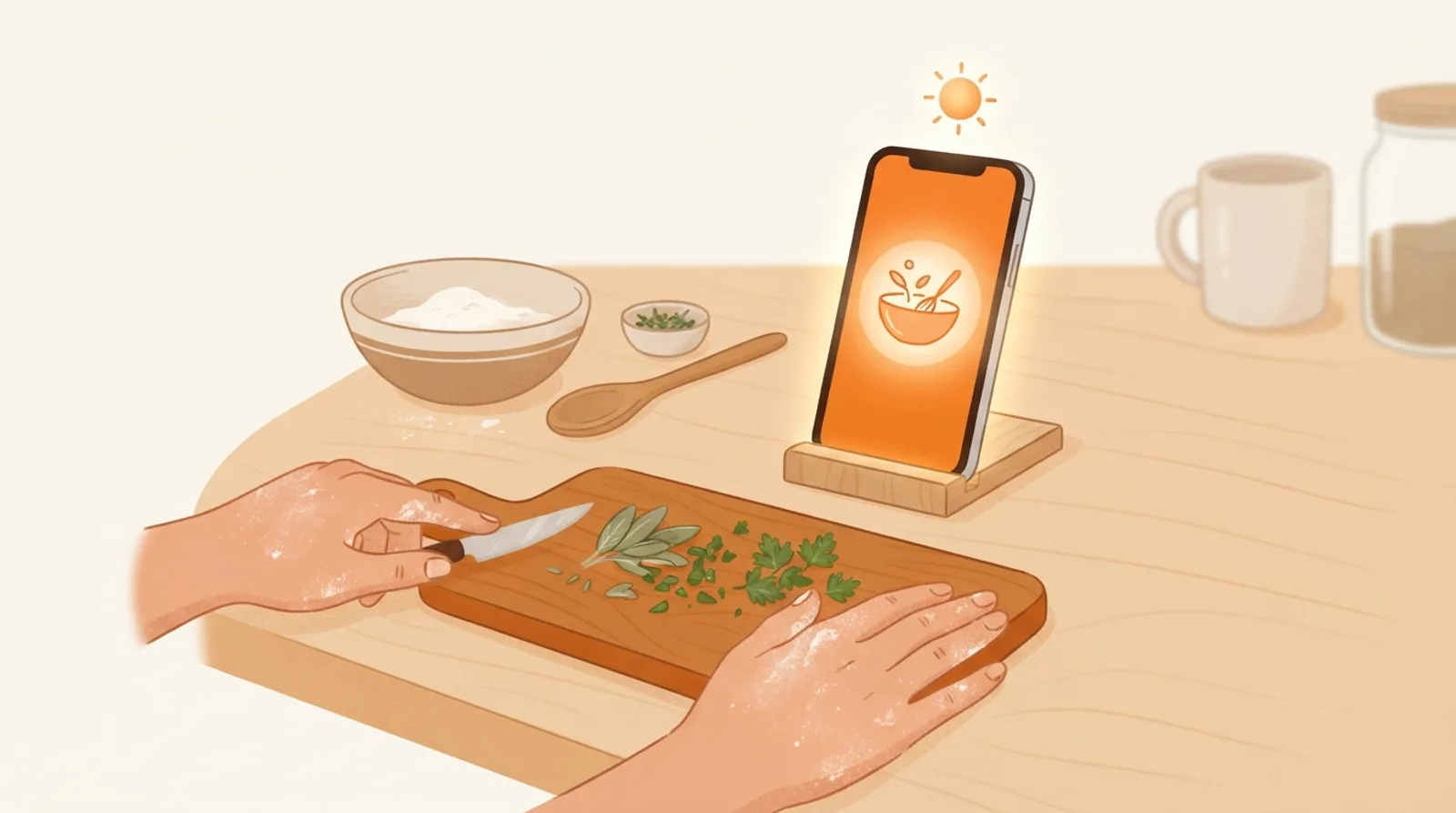
A cook mode solves both. Modern browsers and apps can ask the phone to keep the screen on only while a page or recipe is open and visible. Switch to another app, or close the recipe, and the phone goes back to its normal lock. Browsers also release the hold by themselves when the battery runs low. Every major browser has supported this since early 2025, which is why so many recipe sites now show a "cook mode" toggle.
Try it on this page
Turn this on, set your phone down, and the screen will stay on for as long as this page is open.
| Auto-Lock: Never | Cook mode | |
|---|---|---|
| Screen stays on while cooking | ||
| Turns itself off when you are done | ||
| Phone stays protected in your bag | ||
| Needs changing back after dinner |
Beyond a bright screen: cooking without touching your phone
A screen that stays on is step one. The bigger win is not needing to touch the phone at all, because the next step and the right ingredient amounts are already in front of you.
Scrolling a recipe blog
One step per screen, large type
Small habits that help
- Prop the phone up at eye level, away from the stove and the sink.
- Slip it into a zip-top bag: the touchscreen still works through thin plastic.
- Tap with a clean knuckle instead of a messy fingertip.
- Use your voice. Asking for the next step is faster than washing your hands. Our guide to hands-free cooking covers how.
How CookEase does it
In CookEase, open any saved recipe and tap Cooking Assistant. The recipe opens in a full-screen cook mode that shows one step at a time and holds your screen awake for as long as it is open, on iPhone, Android and the web. You can say "next step" or "repeat that" out loud instead of touching anything, and it turns the screen back over to your normal settings the moment you leave. The cook mode help page walks through every control.
Your screen stays on. Your hands stay messy.
Save any recipe, open it in cook mode, and cook from one big, readable step at a time.